
MCP Unity is an implementation of the Model Context Protocol for Unity Editor, allowing AI assistants to interact with your Unity projects. This package provides a bridge between Unity and a Node.js server that implements the MCP protocol, enabling AI agents like Cursor, Windsurf, Claude Code, Codex CLI, GitHub Copilot, and Google Antigravity to execute operations within the Unity Editor. MCP Unit
npx mdskills install CoderGamester/mcp-unityRelated
@CoderGamester? Sign in with GitHub to claim this listing.Comprehensive Unity Editor integration with 30+ well-documented MCP tools for scene manipulation and project management
| 🇺🇸English | 🇨🇳简体中文 | 🇯🇵日本語 |
|---|
                              ,/(/.   *(/,
                          */(((((/.   *((((((*.
                     .*((((((((((/.   *((((((((((/.
                 ./((((((((((((((/    *((((((((((((((/,
             ,/(((((((((((((/*.           */(((((((((((((/*.
            ,%%#((/((((((*                    ,/(((((/(#&@@(
            ,%%##%%##((((((/*.             ,/((((/(#&@@@@@@(
            ,%%######%%##((/(((/*.    .*/(((//(%@@@@@@@@@@@(
            ,%%####%#(%%#%%##((/((((((((//#&@@@@@@&@@@@@@@@(
            ,%%####%(    /#%#%%%##(//(#@@@@@@@%,   #@@@@@@@(
            ,%%####%(        *#%###%@@@@@@(        #@@@@@@@(
            ,%%####%(           #%#%@@@@,          #@@@@@@@(
            ,%%##%%%(           #%#%@@@@,          #@@@@@@@(
            ,%%%#*              #%#%@@@@,             *%@@@(
            .,      ,/##*.      #%#%@@@@,     ./&@#*      *`
                ,/#%#####%%#/,  #%#%@@@@, ,/&@@@@@@@@@&\.
                 `*#########%%%%###%@@@@@@@@@@@@@@@@@@&*´
                    `*%%###########%@@@@@@@@@@@@@@&*´
                        `*%%%######%@@@@@@@@@@&*´
                            `*#%%##%@@@@@&*´
                               `*%#%@&*´

     ███╗   ███╗ ██████╗██████╗         ██╗   ██╗███╗   ██╗██╗████████╗██╗   ██╗
     ████╗ ████║██╔════╝██╔══██╗        ██║   ██║████╗  ██║██║╚══██╔══╝╚██╗ ██╔╝
     ██╔████╔██║██║     ██████╔╝        ██║   ██║██╔██╗ ██║██║   ██║    ╚████╔╝
     ██║╚██╔╝██║██║     ██╔═══╝         ██║   ██║██║╚██╗██║██║   ██║     ╚██╔╝
     ██║ ╚═╝ ██║╚██████╗██║             ╚██████╔╝██║ ╚████║██║   ██║      ██║
     ╚═╝     ╚═╝ ╚═════╝╚═╝              ╚═════╝ ╚═╝  ╚═══╝╚═╝   ╚═╝      ╚═╝
MCP Unity is an implementation of the Model Context Protocol for Unity Editor, allowing AI assistants to interact with your Unity projects. This package provides a bridge between Unity and a Node.js server that implements the MCP protocol, enabling AI agents like Cursor, Windsurf, Claude Code, Codex CLI, GitHub Copilot, and Google Antigravity to execute operations within the Unity Editor.
MCP Unity provides automatic integration with VSCode-like IDEs (Visual Studio Code, Cursor, Windsurf, Google Antigravity) by adding the Unity Library/PackedCache folder to your workspace. This feature:
The following tools are available for manipulating and querying Unity scenes and GameObjects via MCP:
execute_menu_item: Executes Unity menu items (functions tagged with the MenuItem attribute)
Example prompt: "Execute the menu item 'GameObject/Create Empty' to create a new empty GameObject"
select_gameobject: Selects game objects in the Unity hierarchy by path or instance ID
Example prompt: "Select the Main Camera object in my scene"
update_gameobject: Updates a GameObject's core properties (name, tag, layer, active/static state), or creates the GameObject if it does not exist
Example prompt: "Set the Player object's tag to 'Enemy' and make it inactive"
update_component: Updates component fields on a GameObject or adds it to the GameObject if it does not contain the component
Example prompt: "Add a Rigidbody component to the Player object and set its mass to 5"
add_package: Installs new packages in the Unity Package Manager
Example prompt: "Add the TextMeshPro package to my project"
run_tests: Runs tests using the Unity Test Runner
Example prompt: "Run all the EditMode tests in my project"
send_console_log: Send a console log to Unity
Example prompt: "Send a console log to Unity Editor"
add_asset_to_scene: Adds an asset from the AssetDatabase to the Unity scene
Example prompt: "Add the Player prefab from my project to the current scene"
create_prefab: Creates a prefab with optional MonoBehaviour script and serialized field values
Example prompt: "Create a prefab named 'Player' from the 'PlayerController' script"
create_scene: Creates a new scene and saves it to the specified path
Example prompt: "Create a new scene called 'Level1' in the Scenes folder"
load_scene: Loads a scene by path or name, with optional additive loading
Example prompt: "Load the MainMenu scene"
delete_scene: Deletes a scene by path or name and removes it from Build Settings
Example prompt: "Delete the old TestScene from my project"
get_gameobject: Gets detailed information about a specific GameObject including all components
Example prompt: "Get the details of the Player GameObject"
get_console_logs: Retrieves logs from the Unity console with pagination support
Example prompt: "Show me the last 20 error logs from the Unity console"
recompile_scripts: Recompiles all scripts in the Unity project
Example prompt: "Recompile scripts in my Unity project"
save_scene: Saves the current active scene, with optional Save As to a new path
Example prompt: "Save the current scene" or "Save the scene as 'Assets/Scenes/Level2.unity'"
get_scene_info: Gets information about the active scene including name, path, dirty state, and all loaded scenes
Example prompt: "What scenes are currently loaded in my project?"
unload_scene: Unloads a scene from the hierarchy (does not delete the scene asset)
Example prompt: "Unload the UI scene from the hierarchy"
duplicate_gameobject: Duplicates a GameObject in the scene with optional renaming and reparenting
Example prompt: "Duplicate the Enemy prefab 5 times and rename them Enemy_1 through Enemy_5"
delete_gameobject: Deletes a GameObject from the scene
Example prompt: "Delete the old Player object from the scene"
reparent_gameobject: Changes the parent of a GameObject in the hierarchy
Example prompt: "Move the HealthBar object to be a child of the UI Canvas"
move_gameobject: Moves a GameObject to a new position (local or world space)
Example prompt: "Move the Player object to position (10, 0, 5) in world space"
rotate_gameobject: Rotates a GameObject to a new rotation (local or world space, Euler angles or quaternion)
Example prompt: "Rotate the Camera 45 degrees on the Y axis"
scale_gameobject: Scales a GameObject to a new local scale
Example prompt: "Scale the Enemy object to twice its size"
set_transform: Sets position, rotation, and scale of a GameObject in a single operation
Example prompt: "Set the Cube's position to (0, 5, 0), rotation to (0, 90, 0), and scale to (2, 2, 2)"
create_material: Creates a new material with specified shader and saves it to the project
Example prompt: "Create a red material called 'EnemyMaterial' using the URP Lit shader"
assign_material: Assigns a material to a GameObject's Renderer component
Example prompt: "Assign the 'EnemyMaterial' to the Enemy GameObject"
modify_material: Modifies properties of an existing material (colors, floats, textures)
Example prompt: "Change the color of 'EnemyMaterial' to blue and set metallic to 0.8"
get_material_info: Gets detailed information about a material including shader and all properties
Example prompt: "Show me all the properties of the 'PlayerMaterial'"
batch_execute: Executes multiple tool operations in a single batch request, reducing round-trips and enabling atomic operations with optional rollback on failure
Example prompt: "Create 10 empty GameObjects named Enemy_1 through Enemy_10 in a single batch operation"
unity://menu-items: Retrieves a list of all available menu items in the Unity Editor to facilitate execute_menu_item tool
Example prompt: "Show me all available menu items related to GameObject creation"
unity://scenes-hierarchy: Retrieves a list of all game objects in the current Unity scene hierarchy
Example prompt: "Show me the current scenes hierarchy structure"
unity://gameobject/{id}: Retrieves detailed information about a specific GameObject by instance ID or object path in the scene hierarchy, including all GameObject components with it's serialized properties and fields
Example prompt: "Get me detailed information about the Player GameObject"
unity://logs: Retrieves a list of all logs from the Unity console
Example prompt: "Show me the recent error messages from the Unity console"
unity://packages: Retrieves information about installed and available packages from the Unity Package Manager
Example prompt: "List all the packages currently installed in my Unity project"
unity://assets: Retrieves information about assets in the Unity Asset Database
Example prompt: "Find all texture assets in my project"
unity://tests/{testMode}: Retrieves information about tests in the Unity Test Runner
Example prompt: "List all available tests in my Unity project"
Note:
Project Paths with Spaces
MCP Unity supports project paths containing spaces. However, if you experience connection issues, try moving your project to a path without spaces as a troubleshooting step.
Examples:
- ✅ Recommended:
C:\Users\YourUser\Documents\UnityProjects\MyAwesomeGame- ✅ Supported:
C:\Users\Your User\Documents\Unity Projects\My Awesome Game
Installing this MCP Unity Server is a multi-step process:
To run MCP Unity server, you'll need to have Node.js 18 or later installed on your computer:
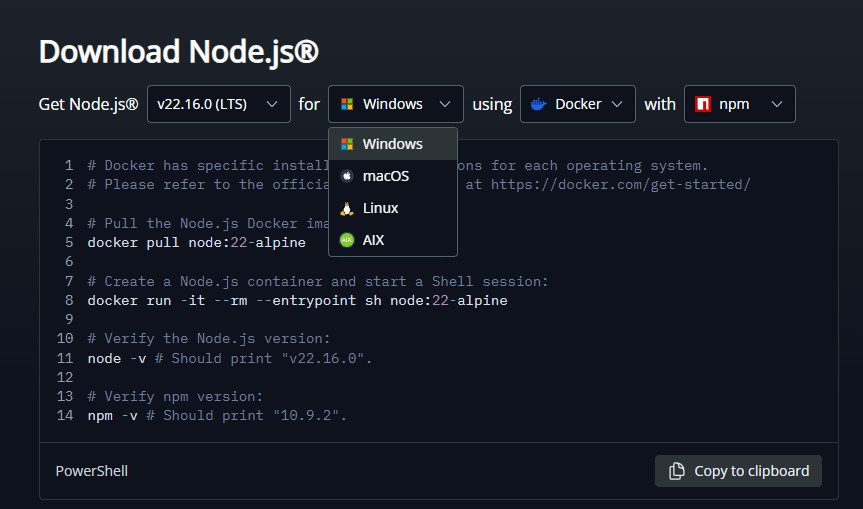
Windows
node --version
macOS
brew install node@18
node --version
https://github.com/CoderGamester/mcp-unity.gitOption 1: Configure using Unity Editor
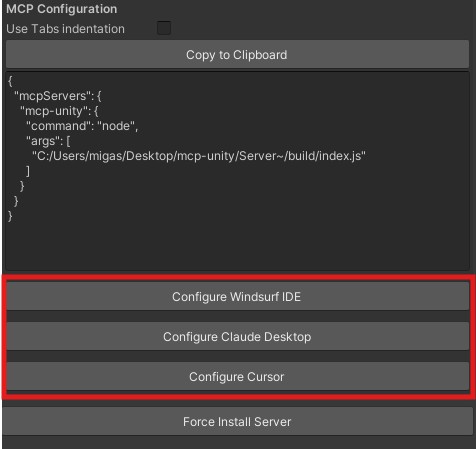
Option 2: Configure Manually
Open the MCP configuration file of your AI client and add the MCP Unity server configuration:
Replace
ABSOLUTE/PATH/TOwith the absolute path to your MCP Unity installation or just copy the text from the Unity Editor MCP Server window (Tools > MCP Unity > Server Window).
For JSON-based clients (Cursor, Windsurf, Claude Code, GitHub Copilot, etc.):
{
   "mcpServers": {
       "mcp-unity": {
          "command": "node",
          "args": [
             "ABSOLUTE/PATH/TO/mcp-unity/Server~/build/index.js"
          ]
       }
   }
}
For Codex CLI (~/.codex/config.toml):
[mcp_servers.mcp-unity]
command = "node"
args = ["ABSOLUTE/PATH/TO/mcp-unity/Server~/build/index.js"]
When the AI client connects to the WebSocket server, it will automatically show in the green box in the window
By default, the WebSocket server runs on port '8090'. You can change this port in two ways:
By default, the timeout between the MCP server and the WebSocket is 10 seconds. You can change depending on the OS you are using:
Tip:
The timeout between your AI Coding IDE (e.g., Claude Desktop, Cursor IDE, Windsurf IDE) and the MCP Server depends on the IDE.
By default, the WebSocket server binds to 'localhost'. To allow MCP bridge connections from other machines:
UNITY_HOST=192.168.1.100 node server.jsBuilding the Node.js Server
The MCP Unity server is built using Node.js . It requires to compile the TypeScript code to JavaScript in the build directory.
In case of issues, you can force install it in by:
If you want to build it manually, you can follow these steps:
Open a terminal/PowerShell/Command Prompt
Navigate to the Server directory:
cd ABSOLUTE/PATH/TO/mcp-unity/Server~
Install dependencies:
npm install
Build the server:
npm run build
Run the server:
node build/index.js
Debugging with MCP Inspector
Debug the server with @modelcontextprotocol/inspector:
npx @modelcontextprotocol/inspector node Server~/build/index.js
npx @modelcontextprotocol/inspector node Server~/build/index.js
Don't forget to shutdown the server with Ctrl + C before closing the terminal or debugging it with the MCP Inspector.
Enable Console Logs
$env:LOGGING = "true"
$env:LOGGING_FILE = "true"
set LOGGING=true
set LOGGING_FILE=true
What is MCP Unity?
MCP Unity is a powerful bridge that connects your Unity Editor environment to AI assistants LLM tools using the Model Context Protocol (MCP).
In essence, MCP Unity:
Why use MCP Unity?
MCP Unity offers several compelling advantages for developers, artists, and project managers:
How does MCP Unity compare with the upcoming Unity 6.2 AI features?
Unity 6.2 is set to introduce new built-in AI tools, including the previous Unity Muse (for generative AI capabilities like texture and animation generation) and Unity Sentis (for running neural networks in Unity runtime). As Unity 6.2 is not yet fully released, this comparison is based on publicly available information and anticipated functionalities:
Focus:
Use Cases:
Complementary, Not Mutually Exclusive: MCP Unity and Unity's native AI tools can be seen as complementary. You might use MCP Unity with your AI coding assistant to set up a scene or batch-modify assets, and then use Unity AI tools to generate a specific texture, or to create animations, or 2D sprites for one of those assets. MCP Unity provides a flexible, protocol-based way to interact with the Editor, which can be powerful for developers who want to integrate with a broader range of external AI services or build custom automation workflows.
What MCP hosts and IDEs currently support MCP Unity?
MCP Unity is designed to work with any AI assistant or development environment that can act as an MCP client. The ecosystem is growing, but current known integrations or compatible platforms include:
Can I extend MCP Unity with custom tools for my project?
Yes, absolutely! One of the significant benefits of the MCP Unity architecture is its extensibility.
McpToolBase (or a similar base for resources) to expose custom Unity Editor functionality. These tools would then be registered in McpUnityServer.cs. For example, you could write a tool to automate a specific asset import pipeline unique to your project.Server/src/tools/ directory, including its Zod schema for inputs/outputs, and register it in Server/src/index.ts. This Node.js part will forward the request to your new C# tool in Unity.This allows you to tailor the AI's capabilities to the specific needs and workflows of your game or application.
Is MCP Unity free to use?
Yes, MCP Unity is an open-source project distributed under the MIT License. You are free to use, modify, and distribute it according to the license terms.
Why am I unable to connect to MCP Unity?
Why won't the MCP Unity server start?
Why do I get a connection failed error when running Play Mode tests?
The run_tests tool returns the following response:
Error:
Connection failed: Unknown error
This error occurs because the bridge connection is lost when the domain reloads upon switching to Play Mode. The workaround is to turn off Reload Domain in Edit > Project Settings > Editor > "Enter Play Mode Settings".
When running the MCP (Node.js) server inside WSL2 while Unity runs on Windows 11, connecting to ws://localhost:8090/McpUnity may fail with ECONNREFUSED.
Cause: WSL2 and Windows have separate network namespaces — localhost inside WSL2 does not point to the Windows host. By default, Unity listens on localhost:8090.
.wslconfig (then run wsl --shutdown and reopen WSL):[wsl2]
networkingMode=mirrored
After enabling, localhost is shared between Windows and WSL2, so the default config (localhost:8090) works.
Set in your WSL shell before starting the MCP client:
# Use the Windows host IP detected from resolv.conf
export UNITY_HOST=$(grep -m1 nameserver /etc/resolv.conf | awk '{print $2}')
With this, Server~/src/unity/mcpUnity.ts will connect to ws://$UNITY_HOST:8090/McpUnity instead of localhost (it reads UNITY_HOST, and may also honor a Host in ProjectSettings/McpUnitySettings.json if present).
0.0.0.0).localhost if mirrored mode is enabled.Note:
Default port is
8090. You can change it in the Unity Server Window (Tools → MCP Unity → Server Window). The value maps toMcpUnitySettingsand is persisted inProjectSettings/McpUnitySettings.json.
npm i -g wscat
# After enabling mirrored networking
wscat -c ws://localhost:8090/McpUnity
# Or using the Windows host IP
wscat -c ws://$UNITY_HOST:8090/McpUnity
Run tests using Unity's Test Runner:
Run tests using Jest:
cd Server~
npm test
To run tests in watch mode:
npm run test:watch
If you have any questions or need support, please open an issue on this repository or alternative you can reach out on:
Contributions are welcome! Please feel free to submit a Pull Request or open an Issue with your request.
Commit your changes following the Conventional Commits format.
This project is under MIT License
Install via CLI
npx mdskills install CoderGamester/mcp-unityMCP Unity Editor (Game Engine) is a free, open-source AI agent skill. MCP Unity is an implementation of the Model Context Protocol for Unity Editor, allowing AI assistants to interact with your Unity projects. This package provides a bridge between Unity and a Node.js server that implements the MCP protocol, enabling AI agents like Cursor, Windsurf, Claude Code, Codex CLI, GitHub Copilot, and Google Antigravity to execute operations within the Unity Editor. MCP Unit
Install MCP Unity Editor (Game Engine) with a single command:
npx mdskills install CoderGamester/mcp-unityThis downloads the skill files into your project and your AI agent picks them up automatically.
MCP Unity Editor (Game Engine) works with Claude Code, Claude Desktop, Cursor, Vscode Copilot, Windsurf, Continue Dev, Gemini Cli, Amp, Roo Code, Goose. Skills use the open SKILL.md format which is compatible with any AI coding agent that reads markdown instructions.