
Creating and refining Mermaid diagrams with live reload. Use when users want flowcharts, sequence diagrams, class diagrams, ER diagrams, state diagrams, or any other Mermaid visualization. Provides best practices for syntax, styling, and the iterative workflow using mermaid_preview and mermaid_save tools.
npx mdskills install veelenga/mermaid-diagramsRelated
@veelenga? Sign in with GitHub to claim this listing.Comprehensive guide with clear workflow, diagram types, and best practices for iterative diagramming
MCP server for rendering Mermaid diagrams in Claude Code with live reload functionality and a built-in skill for expert guidance.
Automatically renders diagrams in your browser with real-time updates as you refine them. Perfect for iterative diagram development and documentation workflows.
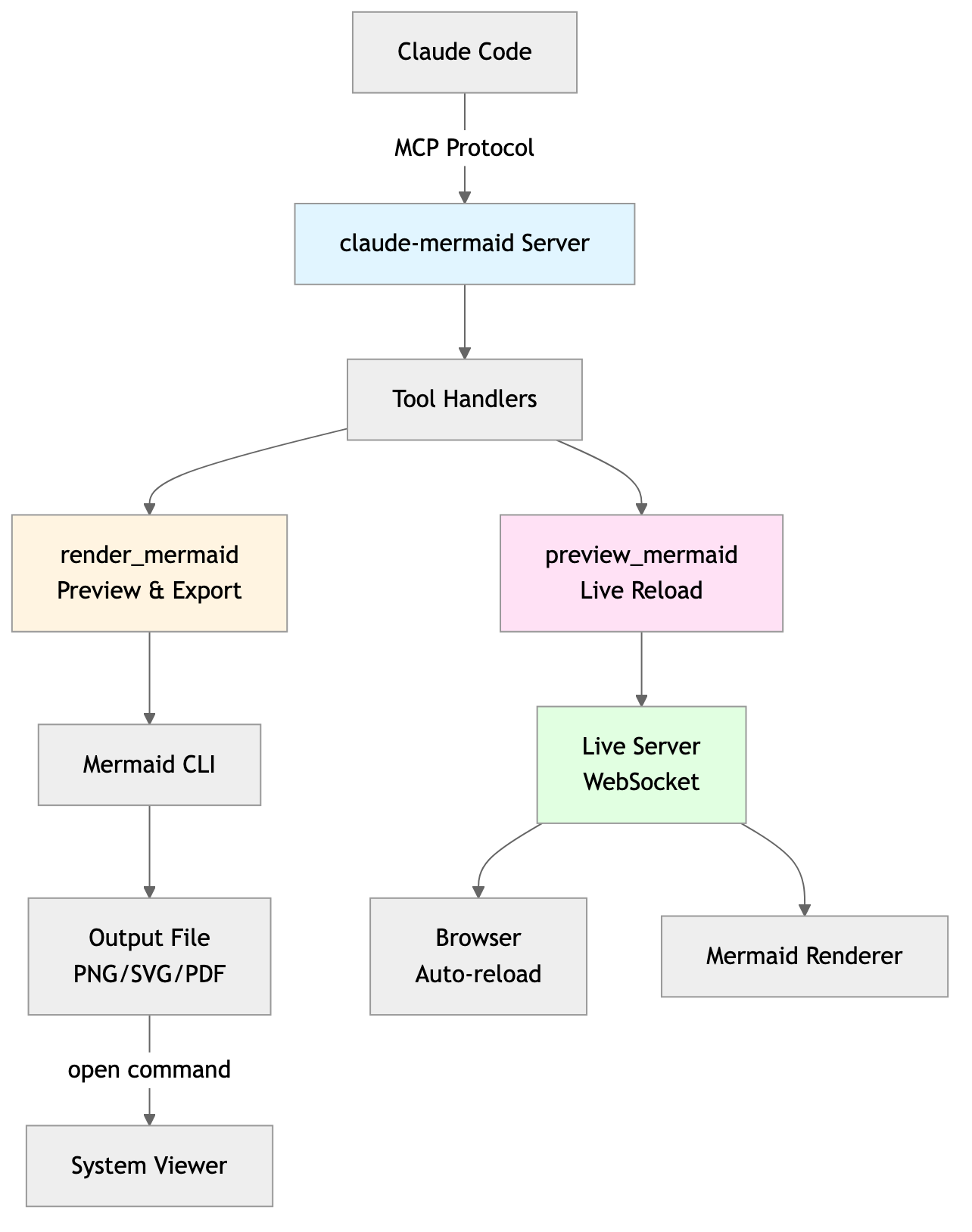
preview_id to work on multiple diagrams simultaneously~/.config/claude-mermaid/liveProject Architecture Diagram
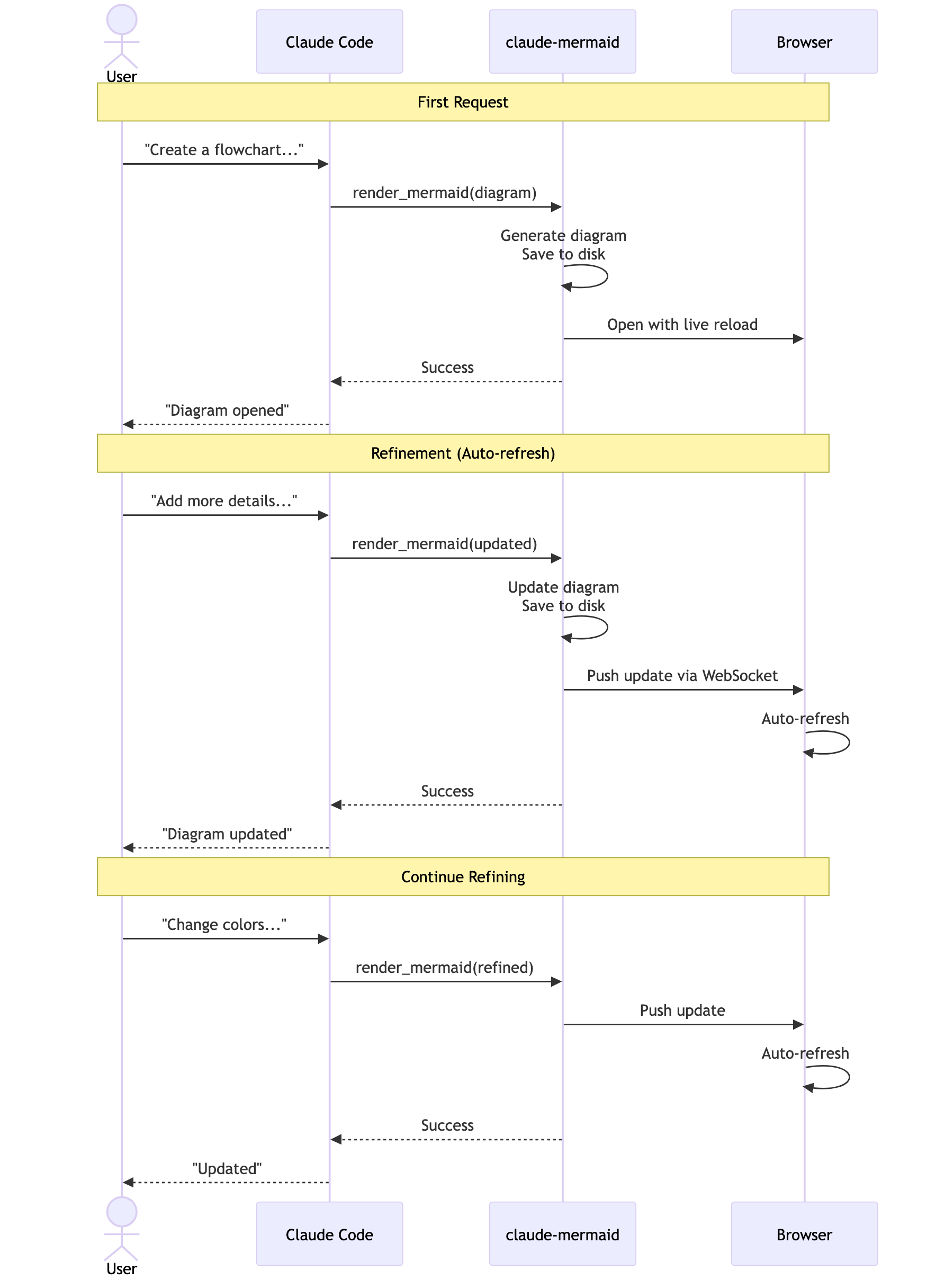
User Workflow Diagram
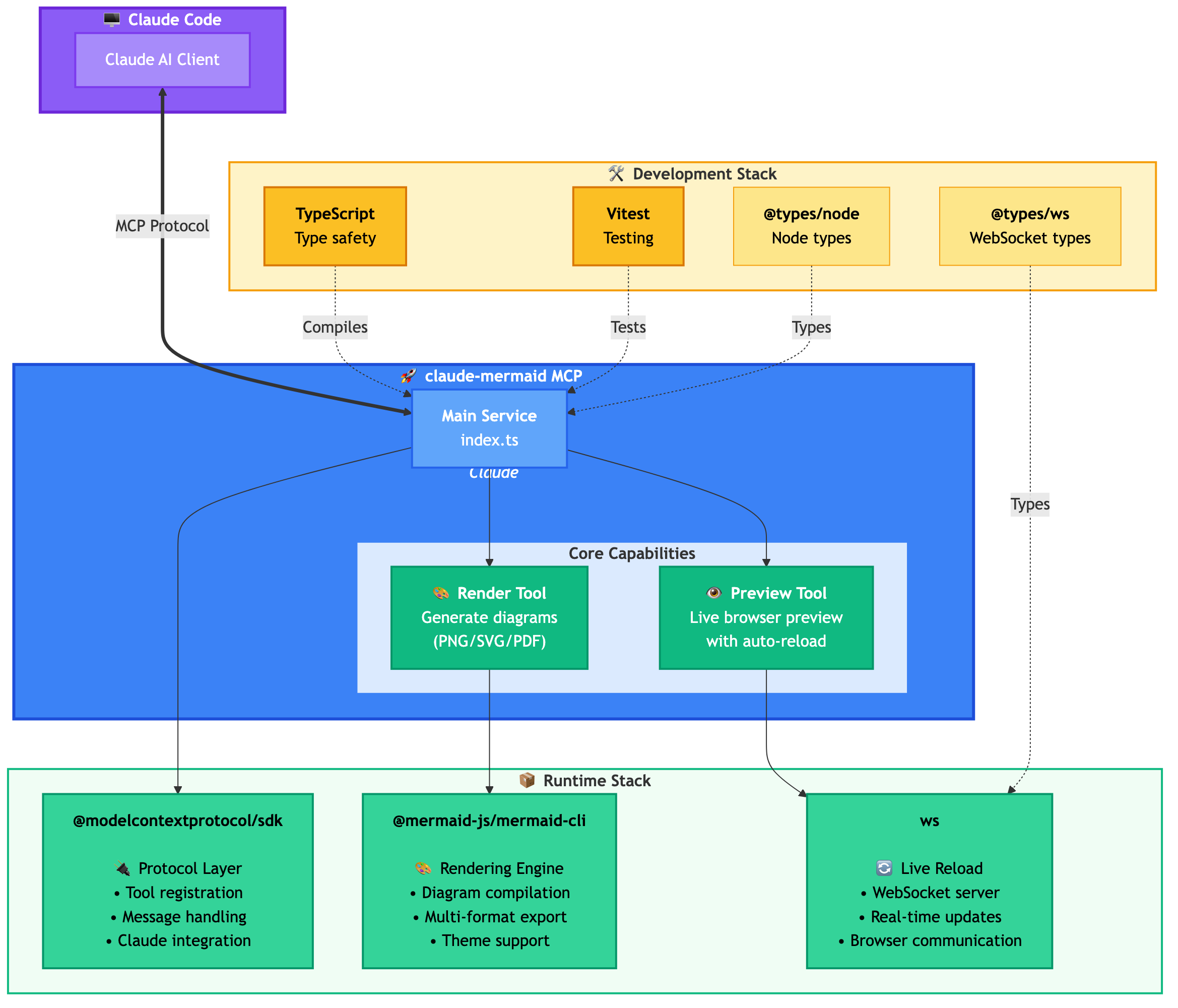
Dependencies Diagram
Plugin Install (Recommended)
In Claude Code, add the marketplace and install the plugin:
/plugin marketplace add veelenga/claude-mermaid
/plugin install claude-mermaid@claude-mermaid
Then restart Claude Code to activate the plugin.
From npm:
npm install -g claude-mermaid
From source:
git clone https://github.com/veelenga/claude-mermaid.git
cd claude-mermaid
npm install && npm run build && npm install -g .
Plugin install: The MCP server is configured automatically. Just verify:
/mcp
You should see mermaid in the MCP server list.
npm install: Configure the MCP server manually:
claude mcp add --scope user mermaid claude-mermaid
Then verify:
claude mcp list
You should see mermaid: claude-mermaid - ✓ Connected
While this server is optimized for Claude Code, it can work with any MCP-compatible client. Here's how to configure it for other popular tools:
Codex
Add to your Codex MCP settings file (~/.codex/mcp_settings.json):
{
  "mcpServers": {
    "mermaid": {
      "command": "claude-mermaid"
    }
  }
}
Or configure via Codex CLI:
codex mcp add mermaid claude-mermaid
Cursor
Add to your Cursor MCP config file (.cursor/mcp.json or settings):
{
  "mcpServers": {
    "mermaid": {
      "command": "claude-mermaid"
    }
  }
}
Or use Cursor's settings UI:
claude-mermaidVSCode with Cline Extension
If using the Cline extension for VSCode:
{
  "mcpServers": {
    "mermaid": {
      "command": "claude-mermaid"
    }
  }
}
Windsurf
Add to Windsurf's MCP configuration file:
{
  "mcpServers": {
    "mermaid": {
      "command": "claude-mermaid"
    }
  }
}
Configuration location varies by platform:
~/Library/Application Support/Windsurf/mcp.json~/.config/windsurf/mcp.json%APPDATA%\Windsurf\mcp.jsonGemini CLI
Add to Gemini CLI's MCP configuration file (~/.gemini/mcp.json):
{
  "mcpServers": {
    "mermaid": {
      "command": "claude-mermaid"
    }
  }
}
Or use the Gemini CLI to configure:
gemini config mcp add mermaid --command claude-mermaid
Other MCP Clients
For any MCP-compatible client, use the standard configuration:
{
  "mcpServers": {
    "mermaid": {
      "command": "claude-mermaid"
    }
  }
}
The command claude-mermaid should be available in your PATH after installation.
Note: Some clients may require the full path to the executable:
which claude-mermaid (Unix/macOS) or where claude-mermaid (Windows)"command": "/path/to/claude-mermaid"Simply ask Claude Code to create Mermaid diagrams naturally. When installed as a plugin, the built-in mermaid-diagrams skill provides expert guidance, best practices, and automatic workflow management.
"Create a Mermaid diagram showing the user authentication flow"
"Draw a sequence diagram for the payment process"
"Generate a flowchart for the deployment pipeline"
With custom formatting:
"Create a dark theme architecture diagram with transparent background"
"Generate a forest theme flowchart and save to ./docs/flow.svg"
With specific output format:
"Create an ER diagram and save as PDF to ./docs/schema.pdf"
"Save the flowchart as PNG to ./docs/flow.png"
Note: Browser always shows SVG for live preview, while saving to your chosen format.
Iterative refinement:
"Create a class diagram for the User module"
// Browser opens with live preview
"Add the Address and Order classes with relationships"
// Diagram updates automatically in browser!
"Create a flowchart and save to ./docs/auth-flow.svg:

graph LR
    A[User Login] --> B{Valid Credentials?}
    B -->|Yes| C[Access Granted]
    B -->|No| D[Access Denied]
    C --> E[Dashboard]
    D --> F[Try Again]

    style A fill:#e1f5ff
    style C fill:#d4edda
    style D fill:#f8d7da
"
The diagram will be saved to ./docs/auth-flow.svg and opened in your browser with live reload enabled.
There are two tools exposed by the MCP server:
mermaid_preview — render and open a live previewdiagram (string, required) — Mermaid diagram codepreview_id (string, required) — Identifier for this preview session. Use different IDs for multiple concurrent diagrams (e.g., architecture, flow).format (string, default svg) — One of svg, png, pdf. Live preview is available only for svg.theme (string, default default) — One of default, forest, dark, neutral.background (string, default white) — Background color. Examples: transparent, white, #F0F0F0.width (number, default 800) — Diagram width in pixels.height (number, default 600) — Diagram height in pixels.scale (number, default 2) — Scale factor for higher quality output.mermaid_save — save the current live diagram to a pathsave_path (string, required) — Destination path (e.g., ./docs/diagram.svg).preview_id (string, required) — Must match the preview_id used in mermaid_preview.format (string, default svg) — One of svg, png, pdf. If the live working file for this format doesn’t exist yet, it is rendered on demand before saving.http://localhost:3737/{preview_id}The live server uses ports 3737-3747 and automatically finds an available port.
svg format only; PNG/PDF are rendered without live reload.style directives inside sequenceDiagram.You can start the preview server without an AI agent using the --serve flag:
claude-mermaid --serve
This opens the diagram gallery in your browser with all previously rendered diagrams. Useful for browsing and exporting diagrams outside of a Claude Code session.
# Install dependencies
npm install

# Build the project
npm run build

# Run tests
npm test

# Watch mode for development
npm run dev

# Start the MCP server directly
npm start
Error: Cannot find package 'puppeteer':
This is a rare environment-specific issue. Try these solutions:
Install claude-mermaid globally:
npm install -g claude-mermaid
Reinstall the plugin in Claude Code:
/plugin uninstall claude-mermaid
/plugin install claude-mermaid@claude-mermaid
Server not connecting:
# Check if server is installed
claude-mermaid -v

# Reinstall if needed
npm install -g claude-mermaid

# Verify MCP configuration
claude mcp list
Permission denied error:
# Make sure the binary is executable
chmod +x $(which claude-mermaid)
Port already in use:
lsof -i :3737-3747Diagrams not rendering or live reload not working:
The server logs to ~/.config/claude-mermaid/logs/:
mcp.log - Tool requests and diagram renderingweb.log - HTTP/WebSocket connections and live reloadEnable debug logging in your MCP config:
{
  "mcpServers": {
    "mermaid": {
      "command": "claude-mermaid",
      "env": {
        "CLAUDE_MERMAID_LOG_LEVEL": "DEBUG"
      }
    }
  }
}
Then check the logs:
# View MCP operations
tail -f ~/.config/claude-mermaid/logs/mcp.log

# View WebSocket connections
tail -f ~/.config/claude-mermaid/logs/web.log
Available log levels: DEBUG, INFO (default), WARN, ERROR, OFF
Contributions are welcome! Please feel free to submit a Pull Request.
MIT - see LICENSE file for details
If you like this project, you might also be interested in
Install via CLI
npx mdskills install veelenga/mermaid-diagramsMermaid Diagrams is a free, open-source AI agent skill. Creating and refining Mermaid diagrams with live reload. Use when users want flowcharts, sequence diagrams, class diagrams, ER diagrams, state diagrams, or any other Mermaid visualization. Provides best practices for syntax, styling, and the iterative workflow using mermaid_preview and mermaid_save tools.
Install Mermaid Diagrams with a single command:
npx mdskills install veelenga/mermaid-diagramsThis downloads the skill files into your project and your AI agent picks them up automatically.
Mermaid Diagrams works with Claude Code, Claude Desktop, Cursor, Vscode Copilot, Windsurf, Continue Dev, Codex, Gemini Cli, Amp, Roo Code, Goose, Opencode, Trae, Qodo, Command Code. Skills use the open SKILL.md format which is compatible with any AI coding agent that reads markdown instructions.