
This downloads the latest release and installs it to /Applications. 1. Download the latest MemoryLane Setup .exe from GitHub Releases. 2. Run the installer and finish setup. 3. Launch MemoryLane from the Start menu. Desktop app that sees what you see, stores summaries about it locally and lets you query it in any AI chat via MCP. Screenshots → local storage → MCP into AI chats Once connected, try
npx mdskills install deusXmachina-dev/memorylaneRelated
@deusXmachina-dev? Sign in with GitHub to claim this listing.Well-documented screen capture tool with semantic search via MCP, clear privacy disclosures
curl -fsSL https://raw.githubusercontent.com/deusXmachina-dev/memorylane/main/install.sh | sh
This downloads the latest release and installs it to /Applications.
MemoryLane Setup *.exe from GitHub Releases.Desktop app that sees what you see, stores summaries about it locally and lets you query it in any AI chat via MCP.
Screenshots → local storage → MCP into AI chats
🎬 Demo
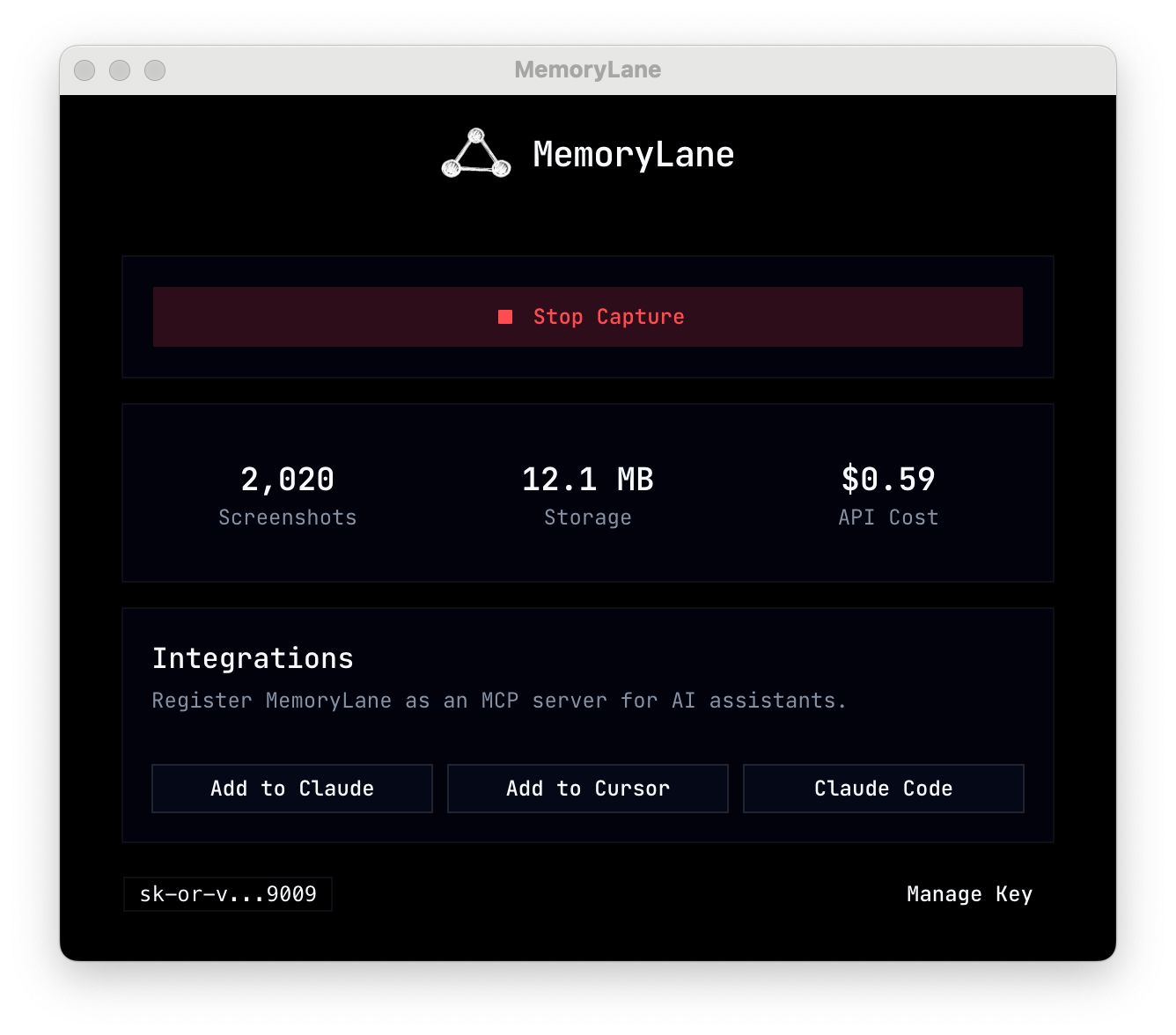
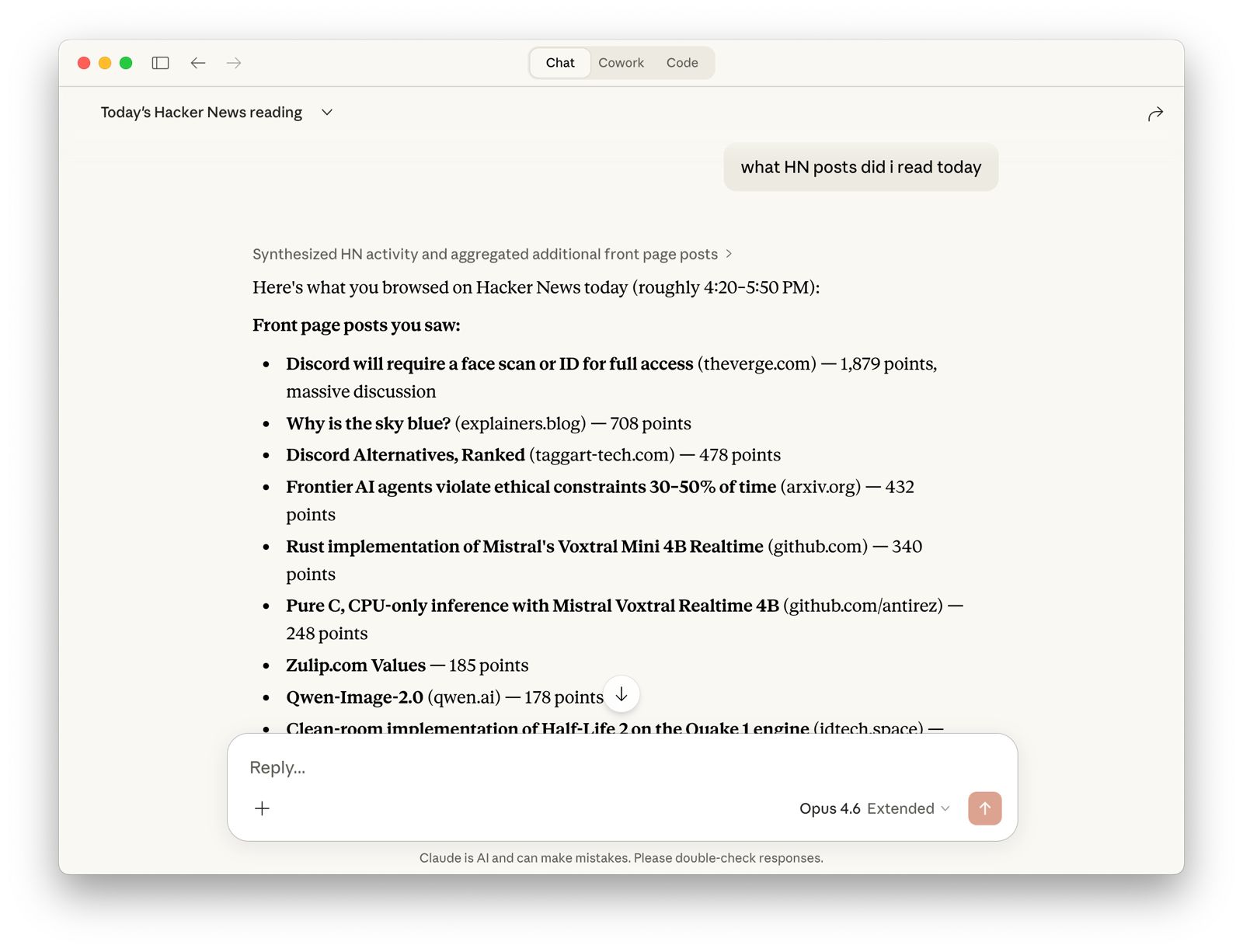
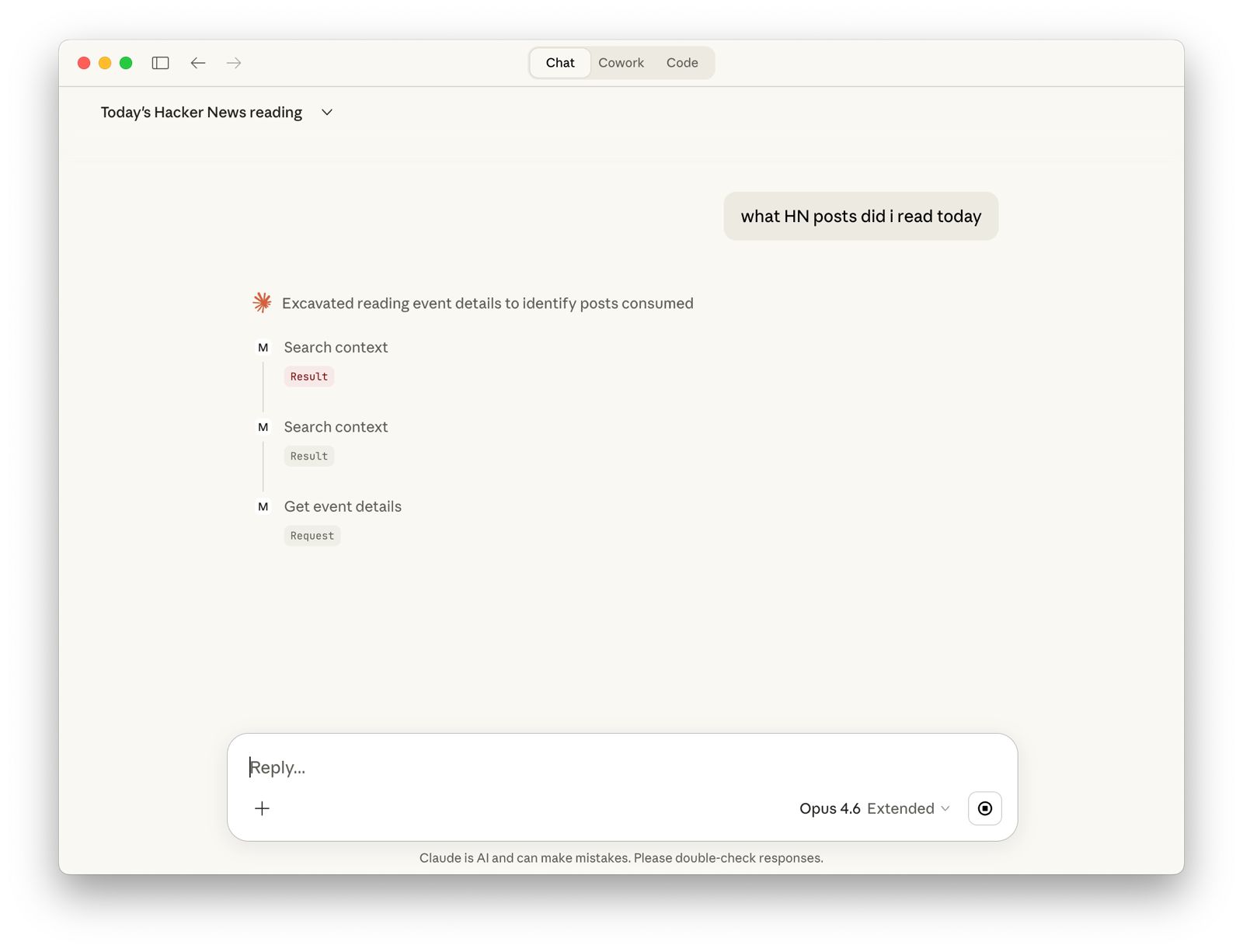
Once connected, try asking your AI assistant things like:
MemoryLane captures your screen to give AI assistants context about what you're working on. Here's what that means in plain terms:
Bottom line: you are giving this app permission to see your screen and detect your input. All captured data is processed into text and stored locally. Screenshots are sent directly from your machine to the configured model endpoint (OpenRouter by default, or your custom provider). MemoryLane never proxies your capture payloads.
⚠️ Early release
This is a fully functional early release. Expect rough edges.
search_context, browse_timeline, and get_event_details toolsClick the MemoryLane icon in your menu bar and select Start Capture. The app will begin taking screenshots based on your activity — typing sessions, clicks, scrolling, app switches, and visual changes on screen. You can stop anytime from the same menu.
From the tray menu, click Add to Claude Desktop, Add to Claude Code, or Add to Cursor. This registers MemoryLane as an MCP server so your AI assistant can query your activity history.
You can also set it up manually by pointing your MCP client to the MemoryLane server binary.
When using MCP tools:
AI conversations are full of friction because LLMs have no context about you. MemoryLane fixes that by watching what you do and making it searchable.
Performance — local models are ~4 GB and turn laptops into space heaters. We believe most users prefer speed and normal battery life from an invisible background app.
Quality — cloud models perform significantly better for summarization and OCR. Local models make a nice demo but fall short when users expect reliable output.
If you prefer local or self-hosted inference, you can now configure custom OpenAI-compatible endpoints (for example Ollama). Cloud remains the default path for most users because it is faster and typically more accurate.
npm installnpm run dev to start in development modeInstall via CLI
npx mdskills install deusXmachina-dev/memorylaneMemoryLane is a free, open-source AI agent skill. This downloads the latest release and installs it to /Applications. 1. Download the latest MemoryLane Setup .exe from GitHub Releases. 2. Run the installer and finish setup. 3. Launch MemoryLane from the Start menu. Desktop app that sees what you see, stores summaries about it locally and lets you query it in any AI chat via MCP. Screenshots → local storage → MCP into AI chats Once connected, try
Install MemoryLane with a single command:
npx mdskills install deusXmachina-dev/memorylaneThis downloads the skill files into your project and your AI agent picks them up automatically.
MemoryLane works with Claude Code, Claude Desktop, Cursor, Vscode Copilot, Windsurf, Continue Dev, Codex, Gemini Cli, Amp, Roo Code, Goose, Opencode, Trae, Qodo, Command Code, Grok. Skills use the open SKILL.md format which is compatible with any AI coding agent that reads markdown instructions.