
🎨 Pixelle MCP - Omnimodal Agent Framework English | 中文 ✨ An AIGC solution based on the MCP protocol, supporting both local ComfyUI and cloud ComfyUI (RunningHub) modes, seamlessly converting workflows into MCP tools with zero code. - ✅ 2025-09-29: Added RunningHub cloud ComfyUI support, enabling workflow execution without local GPU and ComfyUI environment - ✅ 2025-09-03: Architecture refactoring
npx mdskills install AIDC-AI/pixelle-mcpRelated
@AIDC-AI? Sign in with GitHub to claim this listing.Comprehensive multimodal MCP server converting ComfyUI workflows into tools with excellent docs and dual execution modes
🎨 Pixelle MCP - Omnimodal Agent Framework
English | 中文
✨ An AIGC solution based on the MCP protocol, supporting both local ComfyUI and cloud ComfyUI (RunningHub) modes, seamlessly converting workflows into MCP tools with zero code.
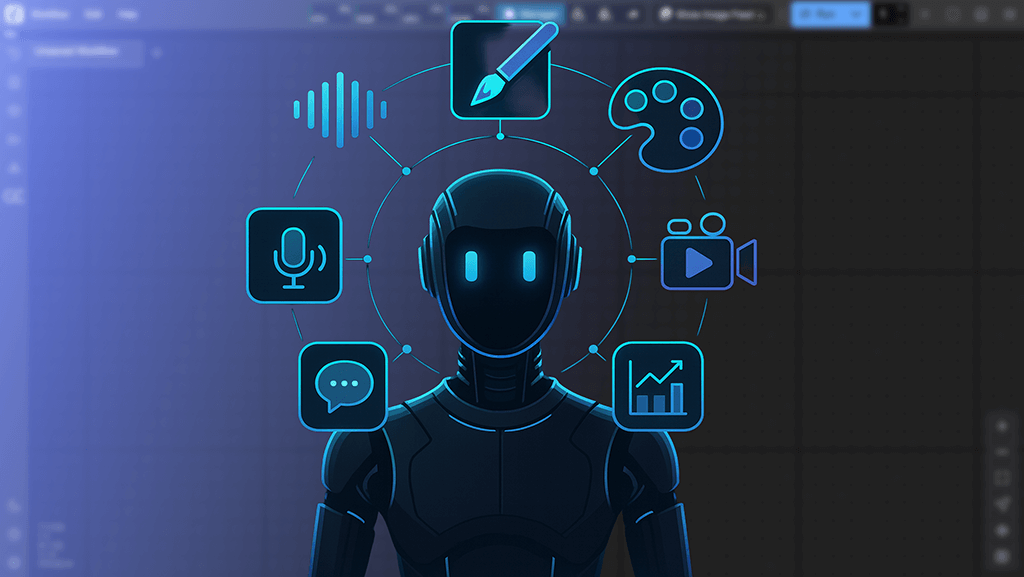
https://github.com/user-attachments/assets/65422cef-96f9-44fe-a82b-6a124674c417
Pixelle MCP adopts a unified architecture design, integrating MCP server, web interface, and file services into one application, providing:
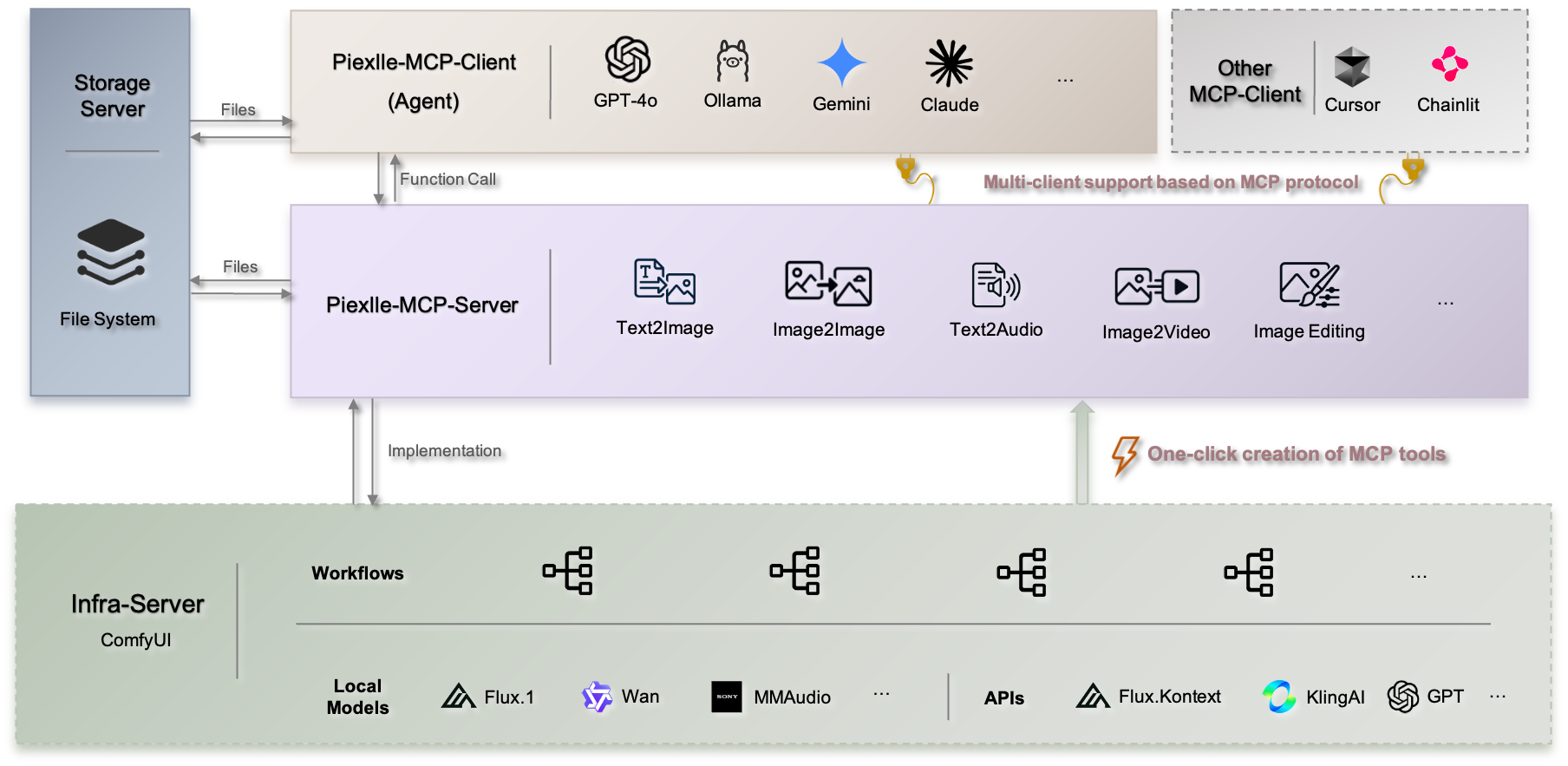
Choose the deployment method that best suits your needs, from simple to complex:
💡 Zero configuration startup, perfect for quick experience and testing
# First you need to install the uv environment
# Start with one command, no system installation required
uvx pixelle@latest
# Here you need to install it in the python3.11 environment
# Install to system
pip install -U pixelle

# Start service
pixelle
After startup, it will automatically enter the configuration wizard to guide you through execution engine selection (ComfyUI/RunningHub) and LLM configuration.
💡 Supports custom workflows and secondary development
git clone https://github.com/AIDC-AI/Pixelle-MCP.git
cd Pixelle-MCP
# Interactive mode (recommended)
uv run pixelle
📚 View Complete CLI Reference →
# Copy example workflows to data directory (run this in your desired project directory)
cp -r workflows/* ./data/custom_workflows/
⚠️ Important: Make sure to test workflows in ComfyUI first to ensure they run properly, otherwise execution will fail.
💡 Suitable for production environments and containerized deployment
git clone https://github.com/AIDC-AI/Pixelle-MCP.git
cd Pixelle-MCP

# Create environment configuration file
cp .env.example .env
# Edit .env file to configure your ComfyUI address and LLM settings
# Start all services in background
docker compose up -d

# View logs
docker compose logs -f
Regardless of which method you use, after startup you can access via:
dev, can be modified after startup💡 Port Configuration: Default port is 9004, can be customized via environment variable PORT=your_port.
On first startup, the system will automatically detect configuration status:
🆘 Need Help? Join community groups for support (see Community section below)
⚡ One workflow = One MCP Tool, supports two addition methods:
📋 Method 1: Local ComfyUI Workflow - Export API format workflow files 📋 Method 2: RunningHub Workflow ID - Use cloud workflow IDs directly
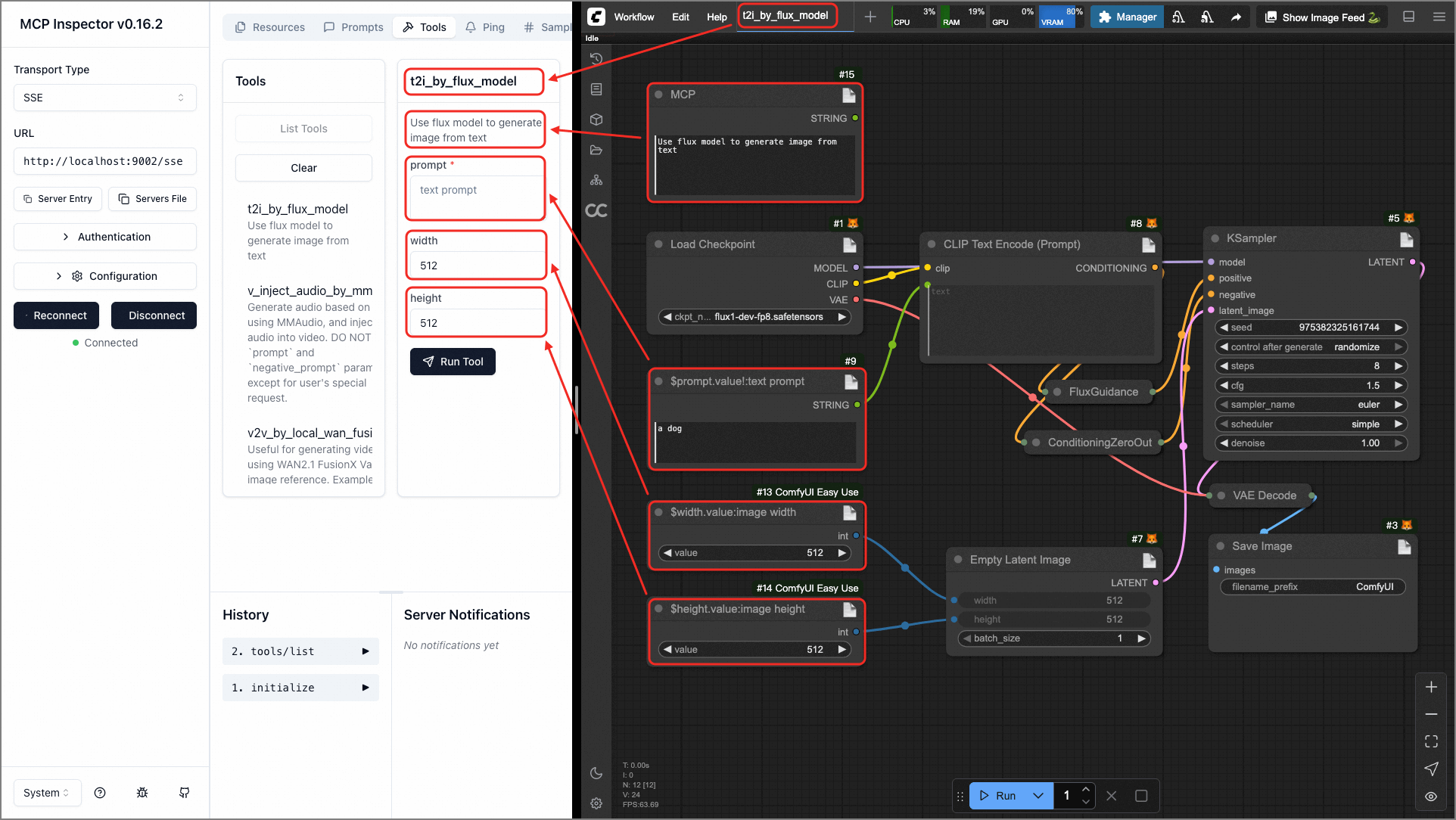
📝 Build a workflow in ComfyUI for image Gaussian blur (Get it here), then set the LoadImage node's title to $image.image! as shown below:
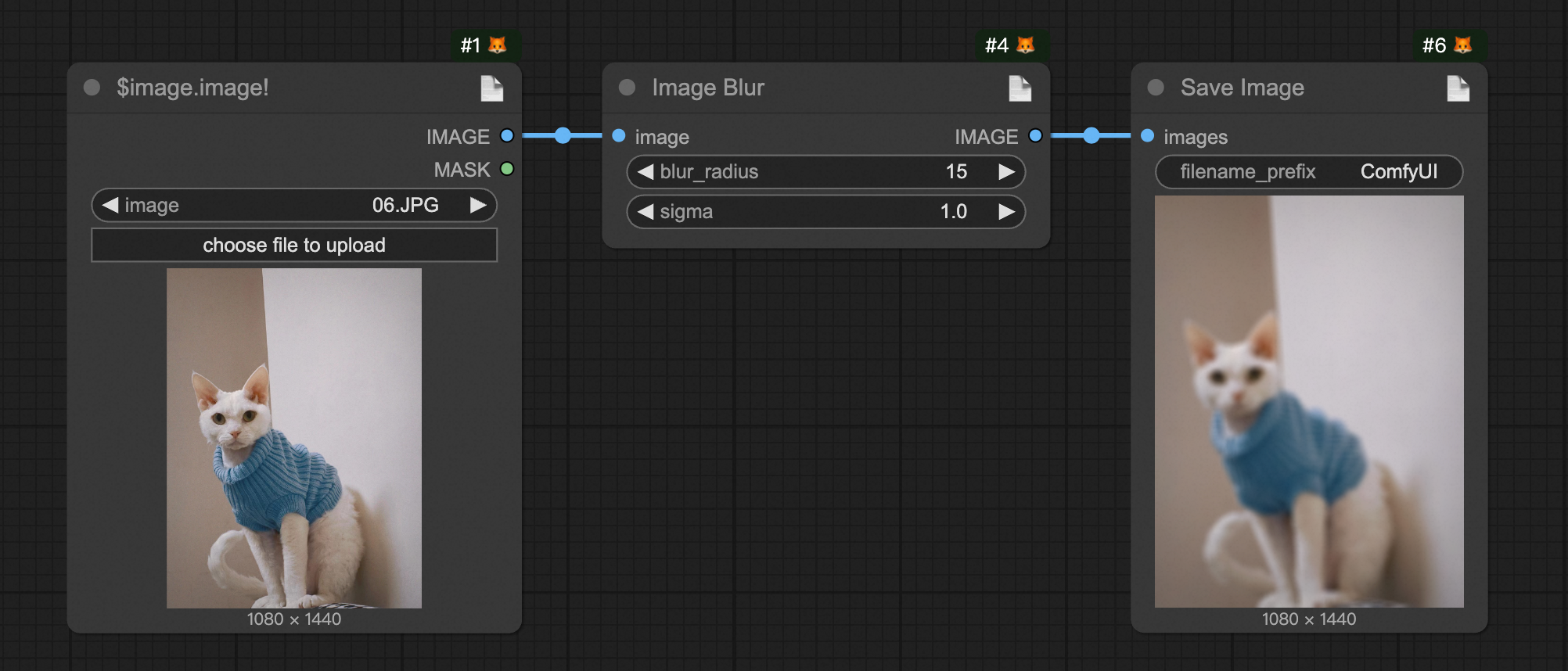
📤 Export it as an API format file and rename it to i_blur.json. You can export it yourself or use our pre-exported version (Get it here)
📋 Copy the exported API workflow file (must be API format), input it on the web page, and let the LLM add this Tool
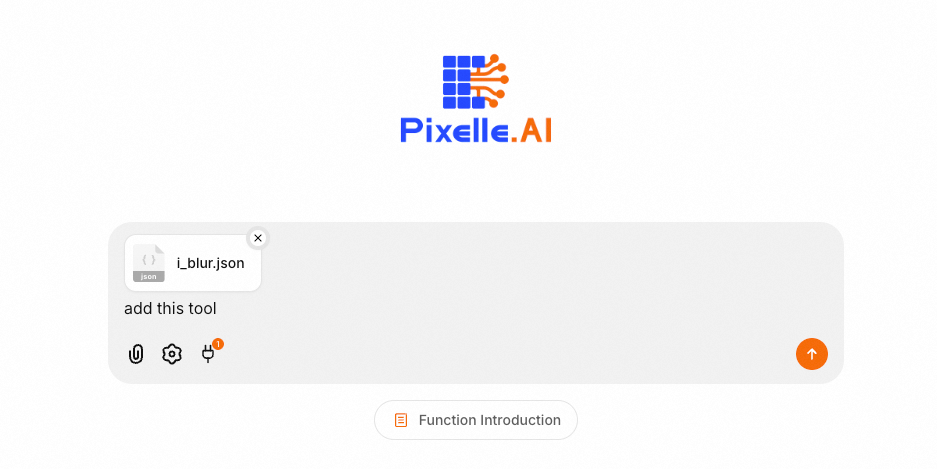
✨ After sending, the LLM will automatically convert this workflow into an MCP Tool
🎨 Now, refresh the page and send any image to perform Gaussian blur processing via LLM
The steps are the same as above, only the workflow part differs (Download workflow: UI format and API format)
Note: When using RunningHub, you only need to input the corresponding workflow ID, no need to download and upload workflow files.
The system supports ComfyUI workflows. Just design your workflow in the canvas and export it as API format. Use special syntax in node titles to define parameters and outputs.
In the ComfyUI canvas, double-click the node title to edit, and use the following DSL syntax to define parameters:
$.[~][!][:]
param_name: The parameter name for the generated MCP tool function~: Optional, indicates URL parameter upload processing, returns relative pathfield_name: The corresponding input field in the node!: Indicates this parameter is requireddescription: Description of the parameterRequired parameter example:
$image.image!:Input image URLimage, mapped to the node's image fieldURL upload processing example:
$image.~image!:Input image URLimage, system will automatically download URL and upload to ComfyUI, returns relative path📝 Note:
LoadImage,VHS_LoadAudioUpload,VHS_LoadVideoand other nodes have built-in functionality, no need to add~marker
The system automatically infers parameter types based on the current value of the node field:
int: Integer values (e.g. 512, 1024)float: Floating-point values (e.g. 1.5, 3.14)bool: Boolean values (e.g. true, false)str: String values (default type)The system will automatically detect the following common output nodes:
SaveImage - Image save nodeSaveVideo - Video save nodeSaveAudio - Audio save nodeVHS_SaveVideo - VHS video save nodeVHS_SaveAudio - VHS audio save nodeUsually used for multiple outputs Use
$output.var_namein any node title to mark output:
$output.resultYou can add a node titled MCP in the workflow to provide a tool description:
String (Multiline) or similar text node (must have a single string property, and the node field should be one of: value, text, string)MCPScan the QR codes below to join our communities for latest updates and technical support:
| Discord Community | WeChat Group |
|---|---|
We welcome all forms of contribution! Whether you're a developer, designer, or user, you can participate in the project in the following ways:
git checkout -b feature/your-feature-namegit commit -m "feat: add your feature"git push origin feature/your-feature-name❤️ Sincere thanks to the following organizations, projects, and teams for supporting the development and implementation of this project.
This project is released under the MIT License (LICENSE, SPDX-License-identifier: MIT).
Install via CLI
npx mdskills install AIDC-AI/pixelle-mcpPixelle MCP - Omnimodal Agent Framework is a free, open-source AI agent skill. 🎨 Pixelle MCP - Omnimodal Agent Framework English | 中文 ✨ An AIGC solution based on the MCP protocol, supporting both local ComfyUI and cloud ComfyUI (RunningHub) modes, seamlessly converting workflows into MCP tools with zero code. - ✅ 2025-09-29: Added RunningHub cloud ComfyUI support, enabling workflow execution without local GPU and ComfyUI environment - ✅ 2025-09-03: Architecture refactoring
Install Pixelle MCP - Omnimodal Agent Framework with a single command:
npx mdskills install AIDC-AI/pixelle-mcpThis downloads the skill files into your project and your AI agent picks them up automatically.
Pixelle MCP - Omnimodal Agent Framework works with Claude Code, Claude Desktop, Cursor, Vscode Copilot, Windsurf, Continue Dev, Gemini Cli, Amp, Roo Code, Goose. Skills use the open SKILL.md format which is compatible with any AI coding agent that reads markdown instructions.