
This is a Model Context Protocol (MCP) server that enables scalable mobile automation, development through a platform-agnostic interface, eliminating the need for distinct iOS or Android knowledge. You can run it on emulators, simulators, and real devices (iOS and Android). This server allows Agents and LLMs to interact with native iOS/Android applications and devices through structured accessibil
npx mdskills install mobile-next/mobile-mcpRelated
@mobile-next? Sign in with GitHub to claim this listing.Comprehensive mobile automation MCP server with extensive cross-platform tools and excellent documentation
This is a Model Context Protocol (MCP) server that enables scalable mobile automation, development through a platform-agnostic interface, eliminating the need for distinct iOS or Android knowledge. You can run it on emulators, simulators, and real devices (iOS and Android). This server allows Agents and LLMs to interact with native iOS/Android applications and devices through structured accessibility snapshots or coordinate-based taps based on screenshots.








https://github.com/user-attachments/assets/c4e89c4f-cc71-4424-8184-bdbc8c638fa1
Join us on our journey as we continuously enhance Mobile MCP! Check out our detailed roadmap to see upcoming features, improvements, and milestones. Your feedback is invaluable in shaping the future of mobile automation.
How we help to scale mobile automation:
| Platform | Supported |
|---|---|
| iOS Real Device | ✅ |
| iOS Simulator | ✅ |
| Android Real Device | ✅ |
| Android Emulator | ✅ |
📱 Click to expand tool list - List of Mobile MCP tools for automation and development
For detailed implementation and parameter specifications, see
src/server.ts
mobile_list_available_devices - List all available devices (simulators, emulators, and real devices)mobile_get_screen_size - Get the screen size of the mobile device in pixelsmobile_get_orientation - Get the current screen orientation of the devicemobile_set_orientation - Change the screen orientation (portrait/landscape)mobile_list_apps - List all installed apps on the devicemobile_launch_app - Launch an app using its package namemobile_terminate_app - Stop and terminate a running appmobile_install_app - Install an app from file (.apk, .ipa, .app, .zip)mobile_uninstall_app - Uninstall an app using bundle ID or package namemobile_take_screenshot - Take a screenshot to understand what's on screenmobile_save_screenshot - Save a screenshot to a filemobile_list_elements_on_screen - List UI elements with their coordinates and propertiesmobile_click_on_screen_at_coordinates - Click at specific x,y coordinatesmobile_double_tap_on_screen - Double-tap at specific coordinatesmobile_long_press_on_screen_at_coordinates - Long press at specific coordinatesmobile_swipe_on_screen - Swipe in any direction (up, down, left, right)mobile_type_keys - Type text into focused elements with optional submitmobile_press_button - Press device buttons (HOME, BACK, VOLUME_UP/DOWN, ENTER, etc.)mobile_open_url - Open URLs in the device browser 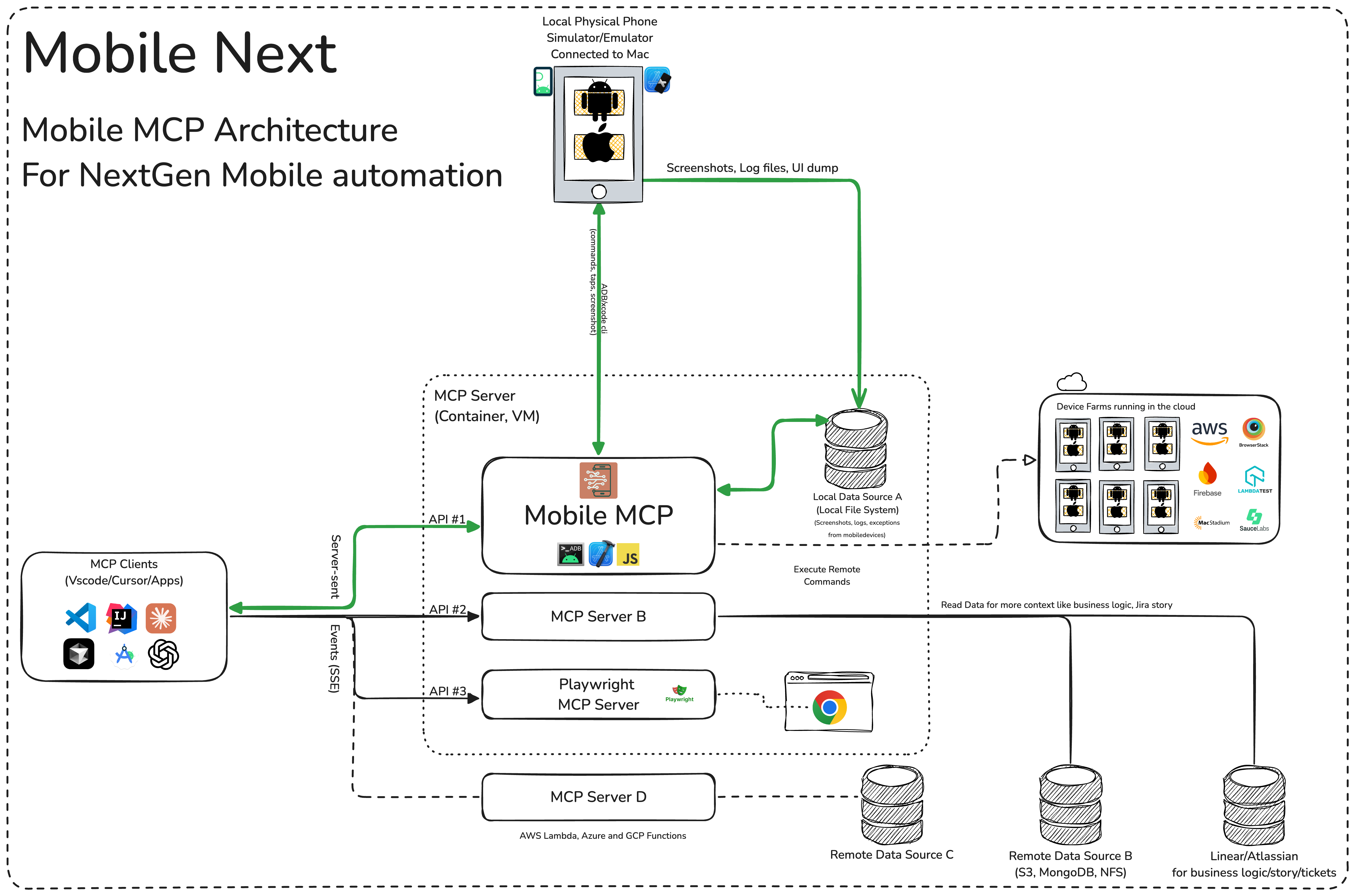
More details in our wiki page for setup, configuration and debugging related questions.
Standard config works in most of the tools:
{
  "mcpServers": {
    "mobile-mcp": {
      "command": "npx",
      "args": ["-y", "@mobilenext/mobile-mcp@latest"]
    }
  }
}
Amp
Add via the Amp VS Code extension settings screen or by updating your settings.json file:
"amp.mcpServers": {
  "mobile-mcp": {
    "command": "npx",
    "args": [
      "@mobilenext/mobile-mcp@latest"
    ]
  }
}
Amp CLI:
Run the following command in your terminal:
amp mcp add mobile-mcp -- npx @mobilenext/mobile-mcp@latest
Cline
To setup Cline, just add the json above to your MCP settings file.
Claude Code
Use the Claude Code CLI to add the Mobile MCP server:
claude mcp add mobile-mcp -- npx -y @mobilenext/mobile-mcp@latest
Claude Desktop
Follow the MCP install guide, use json configuration above.
Codex
Use the Codex CLI to add the Mobile MCP server:
codex mcp add mobile-mcp npx "@mobilenext/mobile-mcp@latest"
Alternatively, create or edit the configuration file ~/.codex/config.toml and add:
[mcp_servers.mobile-mcp]
command = "npx"
args = ["@mobilenext/mobile-mcp@latest"]
For more information, see the Codex MCP documentation.
Copilot
Use the Copilot CLI to interactively add the Mobile MCP server:
/mcp add
You can edit the configuration file ~/.copilot/mcp-config.json and add:
{
  "mcpServers": {
    "mobile-mcp": {
      "type": "local",
      "command": "npx",
      "tools": [
        "*"
      ],
      "args": [
        "@mobilenext/mobile-mcp@latest"
      ]
    }
  }
}
For more information, see the Copilot CLI documentation.
Cursor

Go to Cursor Settings -> MCP -> Add new MCP Server. Name to your liking, use command type with the command npx -y @mobilenext/mobile-mcp@latest. You can also verify config or add command like arguments via clicking Edit.
Gemini CLI
Use the Gemini CLI to add the Mobile MCP server:
gemini mcp add mobile-mcp npx -y @mobilenext/mobile-mcp@latest
Goose

Go to Advanced settings -> Extensions -> Add custom extension. Name to your liking, use type STDIO, and set the command to npx -y @mobilenext/mobile-mcp@latest. Click "Add Extension".
Kiro
Follow the MCP Servers documentation. For example in .kiro/settings/mcp.json:
{
  "mcpServers": {
    "mobile-mcp": {
      "command": "npx",
      "args": [
        "@mobilenext/mobile-mcp@latest"
      ]
    }
  }
}
opencode
Follow the MCP Servers documentation. For example in ~/.config/opencode/opencode.json:
{
  "$schema": "https://opencode.ai/config.json",
  "mcp": {
    "mobile-mcp": {
      "type": "local",
      "command": [
        "npx",
        "@mobilenext/mobile-mcp@latest"
      ],
      "enabled": true
    }
  }
}
Qodo Gen
Open Qodo Gen chat panel in VSCode or IntelliJ → Connect more tools → + Add new MCP → Paste the standard config above.
Click Save.
Windsurf
Open Windsurf settings, navigate to MCP servers, and add a new server using the command type with:
npx @mobilenext/mobile-mcp@latest
Or add the standard config under mcpServers in your settings as shown above.
After adding the MCP server to your IDE/Client, you can instruct your AI assistant to use the available tools. For example, in Cursor's agent mode, you could use the prompts below to quickly validate, test and iterate on UI intereactions, read information from screen, go through complex workflows. Be descriptive, straight to the point.
You can specifiy detailed workflows in a single prompt, verify business logic, setup automations. You can go crazy:
Search for a video, comment, like and share it.
Find the video called " Beginner Recipe for Tonkotsu Ramen" by Way of
Ramen, click on like video, after liking write a comment " this was
delicious, will make it next Friday", share the video with the first
contact in your whatsapp list.
Download a successful step counter app, register, setup workout and 5-star the app
Find and Download a free "Pomodoro" app that has more than 1k stars.
Launch the app, register with my email, after registration find how to
start a pomodoro timer. When the pomodoro timer started, go back to the
app store and rate the app 5 stars, and leave a comment how useful the
app is.
Search in Substack, read, highlight, comment and save an article
Open Substack website, search for "Latest trends in AI automation 2025",
open the first article, highlight the section titled "Emerging AI trends",
and save article to reading list for later review, comment a random
paragraph summary.
Reserve a workout class, set timer
Open ClassPass, search for yoga classes tomorrow morning within 2 miles,
book the highest-rated class at 7 AM, confirm reservation,
setup a timer for the booked slot in the phone
Find a local event, setup calendar event
Open Eventbrite, search for AI startup meetup events happening this
weekend in "Austin, TX", select the most popular one, register and RSVP
yes to the event, setup a calendar event as a reminder.
Check weather forecast and send a Whatsapp/Telegram/Slack message
Open Weather app, check tomorrow's weather forecast for "Berlin", and
send the summary via Whatsapp/Telegram/Slack to contact "Lauren Trown",
thumbs up their response.
Open Zoom app, schedule a meeting titled "AI Hackathon" for tomorrow at
10AM with a duration of 1 hour, copy the invitation link, and send it via
Gmail to contacts "team@example.com".
More prompt examples can be found here.
What you will need to connect MCP with your agent and mobile devices:
When launched, Mobile MCP can connect to:
Make sure you have your mobile platform SDKs (Xcode, Android SDK) installed and configured properly before running Mobile Next Mobile MCP.
When you do not have a real device connected to your machine, you can run Mobile MCP with an emulator or simulator in the background.
For example, on Android:
On iOS, you'll need Xcode and to run the Simulator before using Mobile MCP with that simulator instance.
xcrun simctl listxcrun simctl boot "iPhone 16"Install via CLI
npx mdskills install mobile-next/mobile-mcpMobile MCP is a free, open-source AI agent skill. This is a Model Context Protocol (MCP) server that enables scalable mobile automation, development through a platform-agnostic interface, eliminating the need for distinct iOS or Android knowledge. You can run it on emulators, simulators, and real devices (iOS and Android). This server allows Agents and LLMs to interact with native iOS/Android applications and devices through structured accessibil
Install Mobile MCP with a single command:
npx mdskills install mobile-next/mobile-mcpThis downloads the skill files into your project and your AI agent picks them up automatically.
Mobile MCP works with Claude Code, Claude Desktop, Cursor, Vscode Copilot, Windsurf, Continue Dev, Gemini Cli, Amp, Roo Code, Goose. Skills use the open SKILL.md format which is compatible with any AI coding agent that reads markdown instructions.