
This project implements a Model Context Protocol (MCP) server for interacting with the ZenML API. The Model Context Protocol (MCP) is an open protocol that standardizes how applications provide context to Large Language Models (LLMs). It acts like a "USB-C port for AI applications" - providing a standardized way to connect AI models to different data sources and tools. MCP follows a client-server
npx mdskills install zenml-io/mcp-zenmlRelated
@zenml-io? Sign in with GitHub to claim this listing.Comprehensive MCP server with extensive ZenML API coverage and excellent documentation
This project implements a Model Context Protocol (MCP) server for interacting with the ZenML API.
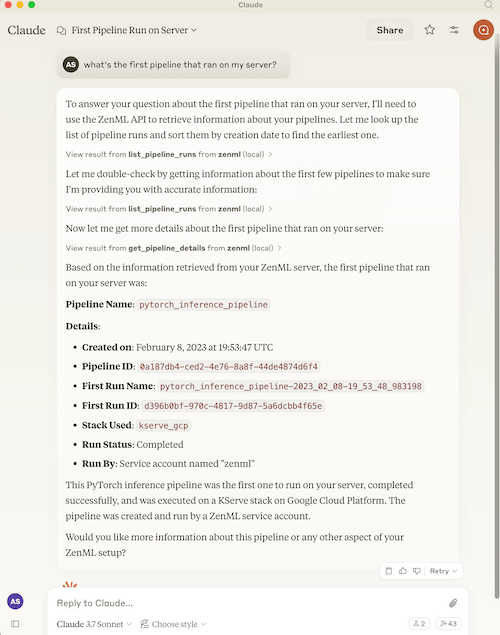
The Model Context Protocol (MCP) is an open protocol that standardizes how applications provide context to Large Language Models (LLMs). It acts like a "USB-C port for AI applications" - providing a standardized way to connect AI models to different data sources and tools.
MCP follows a client-server architecture where:
ZenML is an open-source platform for building and managing ML and AI pipelines. It provides a unified interface for managing data, models, and experiments.
For more information, see the ZenML website and our documentation.
The server provides MCP tools to access core read functionality from the ZenML server, providing a way to get live information about:
The server also allows you to trigger new pipeline runs using snapshots (preferred) or run templates (deprecated).
Note: We're continuously improving this integration based on user feedback. Please join our Slack community to share your experience and help us make it even better!
The MCP server exposes the following tools, grouped by category:
| Tool | Description |
|---|---|
get_snapshot | Get a frozen pipeline configuration by name/ID |
list_snapshots | List snapshots with filters (runnable, deployable, deployed, tag) |
get_deployment | Get a deployment's runtime status and URL |
list_deployments | List deployments with filters (status, pipeline, tag) |
get_deployment_logs | Get bounded logs from a deployment (tail=100 default, max 1000) |
trigger_pipeline | Trigger a pipeline run (prefer snapshot_name_or_id parameter) |
| Tool | Description |
|---|---|
get_active_project | Get the currently active project |
get_project | Get project details by name/ID |
list_projects | List all projects |
get_tag | Get tag details (exclusive, colors) |
list_tags | List tags with filters (resource_type) |
get_build | Get build details (image, code embedding) |
list_builds | List builds with filters (is_local, contains_code) |
| Tool | Description |
|---|---|
get_user, list_users, get_active_user | User management |
get_stack, list_stacks | Stack configurations |
get_stack_component, list_stack_components | Stack components |
get_flavor, list_flavors | Component flavors |
get_service_connector, list_service_connectors | Cloud connectors |
get_pipeline_run, list_pipeline_runs | Pipeline runs |
get_run_step, list_run_steps | Step details |
get_step_logs, get_step_code | Step logs and source code |
list_pipelines, get_pipeline_details | Pipeline definitions |
get_schedule, list_schedules | Schedules |
list_artifacts | Artifact metadata |
list_secrets | Secret names (not values) |
get_service, list_services | Model services |
get_model, list_models | Model registry |
get_model_version, list_model_versions | Model versions |
| Tool | Description |
|---|---|
open_pipeline_run_dashboard | Open interactive pipeline runs dashboard (MCP App) |
open_run_activity_chart | Open 30-day run activity bar chart (MCP App) |
| Tool | Description |
|---|---|
stack_components_analysis | Analyze stack component usage |
recent_runs_analysis | Analyze recent pipeline runs |
most_recent_runs | Get N most recent runs |
| Tool | Replacement |
|---|---|
get_run_template | Use get_snapshot instead |
list_run_templates | Use list_snapshots instead |
trigger_pipeline(template_id=...) | Use trigger_pipeline(snapshot_name_or_id=...) |
Why the change? ZenML evolved its "runnable pipeline artifact" concept. Run Templates are now deprecated wrappers that internally just point to Snapshots. New code should use Snapshots directly.
| Old Pattern (Templates) | New Pattern (Snapshots) |
|---|---|
list_run_templates() | list_snapshots(runnable=True, named_only=True) |
get_run_template(name) | get_snapshot(name, include_config_schema=True) |
trigger_pipeline(template_id=...) | trigger_pipeline(snapshot_name_or_id=...) |
1. Discover project context:
   → get_active_project()

2. Find runnable snapshots:
   → list_snapshots(runnable=True, named_only=True)

3. Trigger a run:
   → trigger_pipeline(pipeline_name_or_id="my-pipeline", snapshot_name_or_id="my-snapshot")

4. Check deployments:
   → list_deployments(status="running")
   → get_deployment_logs(name_id_or_prefix="my-deployment", tail=100)
Note: get_deployment_logs returns bounded output (default 100 lines, max 1000, capped at 100KB) and requires the appropriate deployer integration to be installed.
The easiest way to set up the ZenML MCP Server is through your ZenML dashboard's MCP Settings page.
Navigate to Settings → MCP in your ZenML dashboard to get:
The MCP Settings page lets you generate a Personal Access Token (PAT) with a single click. The token is automatically included in all generated configuration snippets.
Prefer manual setup? See the detailed instructions below.
What are MCP Apps? MCP Apps are interactive HTML UIs that MCP servers can serve directly into AI clients. They render in sandboxed iframes and can call server tools bidirectionally. See the official announcement for full details.
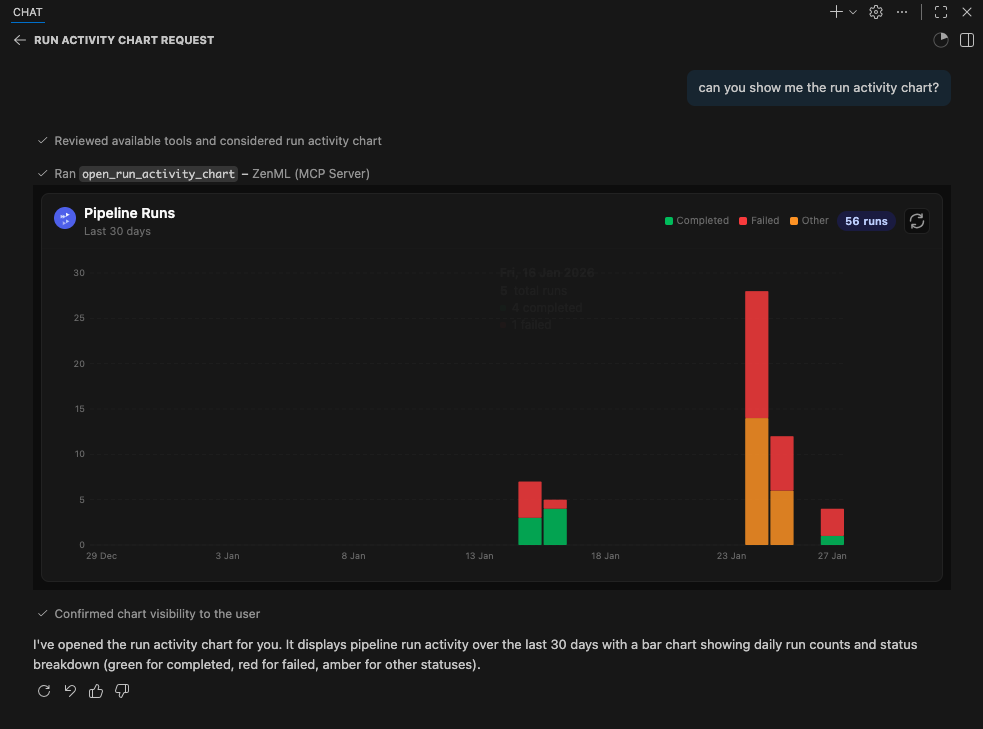
This server includes two experimental MCP Apps:
| App | Tool | Description |
|---|---|---|
| Pipeline Runs Dashboard | open_pipeline_run_dashboard | Interactive table of recent pipeline runs with status, step details, and logs |
| Run Activity Chart | open_run_activity_chart | Bar chart of pipeline run activity over the last 30 days with status breakdown |
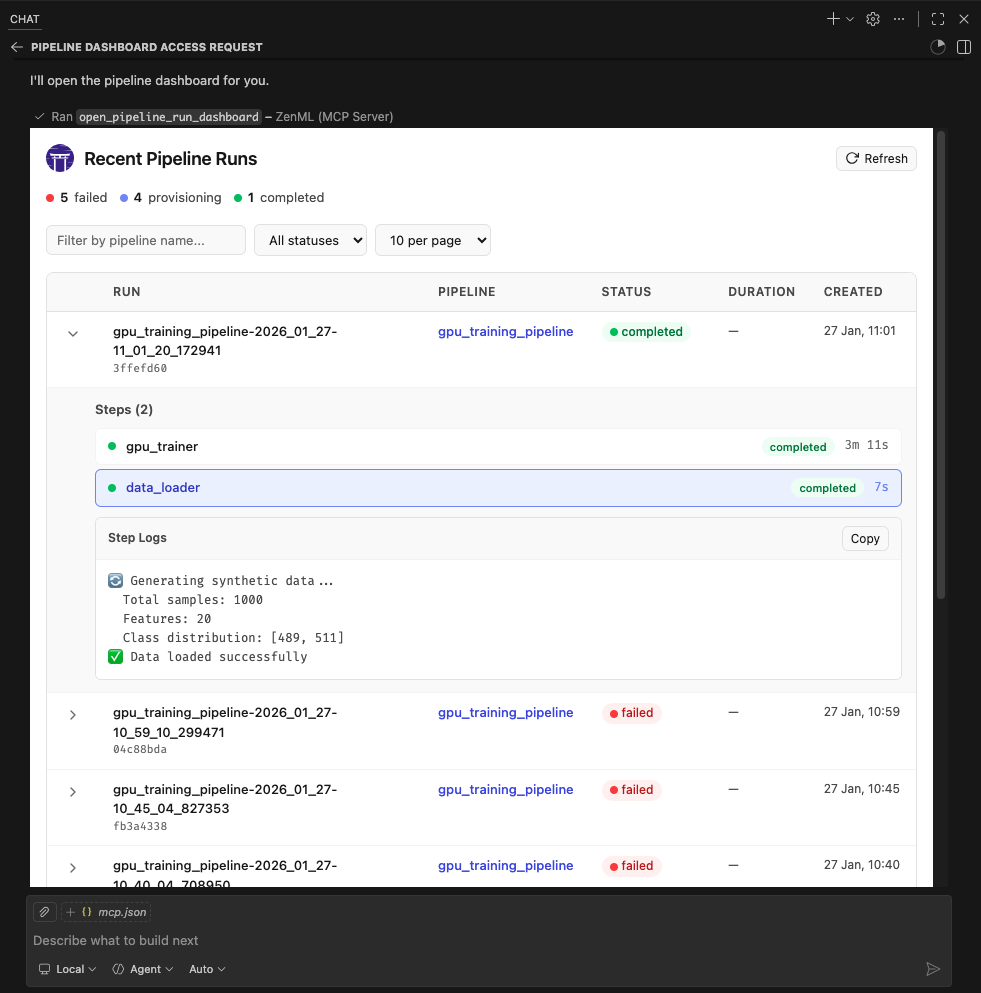
These apps are included as proof-of-concept examples. We welcome feedback and contributions for more MCP Apps. It is still early days for this new feature so we'll have to see how it evolves. We expect to support it more fully in the future.
MCP Apps require Streamable HTTP transport (not stdio). The following clients currently support MCP Apps:
Note: We were unable to test thoroughly with Claude Desktop or Claude.ai at the time of writing. If you encounter issues, please report them.
MCP Apps require Streamable HTTP transport and a publicly reachable URL (for cloud-hosted clients like Claude.ai). The simplest setup uses Docker + Cloudflare tunnel:
1. Build and run the Docker container:
docker build -t mcp-zenml:apps .

docker run --rm -d --name mcp-zenml-apps -p 8001:8001 \
  -e ZENML_STORE_URL="https://your-zenml-server.example.com" \
  -e ZENML_STORE_API_KEY="your-api-key" \
  -e ZENML_ACTIVE_PROJECT_ID="your-project-id" \
  mcp-zenml:apps --transport streamable-http --host 0.0.0.0 --port 8001 \
  --disable-dns-rebinding-protection
2. Start a Cloudflare tunnel (for cloud clients):
npx cloudflared tunnel --url http://localhost:8001
This prints a public URL like https://random-words.trycloudflare.com.
3. Connect your client:
https://random-words.trycloudflare.com/mcp e.g.:{
"servers": {
"ZenML": {
"url": "https://USE-YOUR-OWN-URL.trycloudflare.com/mcp",
"type": "http"
}
},
"inputs": []
}
Important notes:
ZENML_ACTIVE_PROJECT_ID is required — without it, pipeline run tools will
fail with "No project is currently set as active"--disable-dns-rebinding-protection flag is needed when running behind
reverse proxies (cloudflared, ngrok) — it's safe when the proxy handles securityThis project includes automated testing to ensure the MCP server remains functional:
uv run scripts/test_mcp_server.py server/zenml_server.pyThe automated tests verify:
For interactive debugging, use the MCP Inspector — a web-based tool that lets you test MCP tools in real-time:
# Using .env.local (recommended for development)
cp .env.local.example .env.local  # Then edit with your credentials
source .env.local && npx @modelcontextprotocol/inspector \
  -e ZENML_STORE_URL=$ZENML_STORE_URL \
  -e ZENML_STORE_API_KEY=$ZENML_STORE_API_KEY \
  -- uv run server/zenml_server.py
This opens a web UI with your credentials pre-filled — just click Connect and use the Tools tab to test any tool interactively.
See CLAUDE.md for more detailed debugging instructions.
The ZenML MCP Server collects anonymous usage analytics to help us improve the product.
We track:
We do NOT collect:
To disable analytics:
# Option 1
export ZENML_MCP_ANALYTICS_ENABLED=false

# Option 2
export ZENML_MCP_DISABLE_ANALYTICS=true
For debugging/testing (logs events to stderr instead of sending):
export ZENML_MCP_ANALYTICS_DEV=true
For Docker users: Set ZENML_MCP_ANALYTICS_ID to maintain a consistent anonymous ID across container restarts.
You will need to have access to a deployed ZenML server. If you don't have one, you can sign up for a free trial at ZenML Pro and we'll manage the deployment for you.
Tip: Once you have a ZenML server, check out the MCP Settings page in your dashboard for the easiest setup experience.
Compatibility: This MCP server is tested with and recommended for ZenML >= 0.93.0. If you are running an older ZenML version, please use an earlier release of this MCP server.
You will also (probably) need to have uv installed locally. For more information, see
the uv documentation.
We recommend installation via their installer script or via brew if using a
Mac. (Technically you don't need it, but it makes installation and setup easy.)
You will also need to clone this repository somewhere locally:
git clone https://github.com/zenml-io/mcp-zenml.git
The MCP config file is a JSON file that tells the MCP client how to connect to your MCP server. Different MCP clients will use or specify this differently. Two commonly-used MCP clients are Claude Desktop and Cursor, for which we provide installation instructions below.
You will need to specify your ZenML MCP server in the following format:
{
    "mcpServers": {
        "zenml": {
            "command": "/usr/local/bin/uv",
            "args": ["run", "path/to/server/zenml_server.py"],
            "env": {
                "LOGLEVEL": "WARNING",
                "NO_COLOR": "1",
                "ZENML_LOGGING_COLORS_DISABLED": "true",
                "ZENML_LOGGING_VERBOSITY": "WARN",
                "ZENML_ENABLE_RICH_TRACEBACK": "false",
                "PYTHONUNBUFFERED": "1",
                "PYTHONIOENCODING": "UTF-8",
                "ZENML_STORE_URL": "https://your-zenml-server-goes-here.com",
                "ZENML_STORE_API_KEY": "your-api-key-here"
            }
        }
    }
}
There are four dummy values that you will need to replace:
uv (the path listed above is where it
would be on a Mac if you installed it via brew)zenml_server.py file (this is the file that will be run when
you connect to the MCP server). This file is located inside this repository at
the root. You will need to specify the exact full path to this file.https://d534d987a-zenml.cloudinfra.zenml.io.You are free to change the way you run the MCP server Python file, but using
uv will probably be the easiest option since it handles the environment and
dependency installation for you.
Quick alternative: Use the MCP Settings page in your ZenML dashboard (Settings → MCP) to get pre-configured installation instructions and deep links for Claude Desktop.
You will need to have the latest version of Claude Desktop installed.
You can simply open the Settings menu and drag the mcp-zenml.mcpb file from the
root of this repository onto the menu and it will guide you through the
installation and setup process. You'll need to add your ZenML server URL and API key.
Note: MCP bundles (.mcpb) replace the older Desktop Extensions (.dxt) format; existing .dxt files still work in Claude Desktop.
For a better experience with ZenML tool results, you can configure Claude to display the JSON responses in a more readable format. In Claude Desktop, go to Settings → Profile, and in the "What personal preferences should Claude consider in responses?" section, add something like the following (or use these exact words!):
When using zenml tools which return JSON strings and you're asked a question, you might want to consider using markdown tables to summarize the results or make them easier to view!
This will encourage Claude to format ZenML tool outputs as markdown tables, making the information much easier to read and understand.
Quick alternative: The MCP Settings page in your ZenML dashboard (Settings → MCP) can generate the exact
mcp.jsoncontent with your credentials pre-filled.
You will need to have Cursor installed.
Cursor works slightly differently to Claude Desktop in that you specify the config file on a per-repository basis. This means that if you want to use the ZenML MCP server in multiple repos, you will need to specify the config file in each of them.
To set it up for a single repository, you will need to:
.cursor folder in the root of your repositorymcp.json file with the content aboveIn our experience, sometimes it shows a red error indicator even though it is working. You can try it out by chatting in the Cursor chat window. It will let you know if is able to access the ZenML tools or not.
You can run the server as a Docker container. The process communicates over stdio, so it will wait for an MCP client connection. Pass your ZenML credentials via environment variables.
Pull the latest multi-arch image:
docker pull zenmldocker/mcp-zenml:latest
Versioned releases are tagged as X.Y.Z:
docker pull zenmldocker/mcp-zenml:1.0.8
Run with your ZenML credentials (stdio mode):
docker run -i --rm \
  -e ZENML_STORE_URL="https://your-zenml-server.example.com" \
  -e ZENML_STORE_API_KEY="your-api-key" \
  zenmldocker/mcp-zenml:latest
{
  "mcpServers": {
    "zenml": {
      "command": "docker",
      "args": [
        "run", "-i", "--rm",
        "-e", "ZENML_STORE_URL=https://...",
        "-e", "ZENML_STORE_API_KEY=ZENKEY_...",
        "-e", "ZENML_ACTIVE_PROJECT_ID=...",
        "-e", "LOGLEVEL=WARNING",
        "-e", "NO_COLOR=1",
        "-e", "ZENML_LOGGING_COLORS_DISABLED=true",
        "-e", "ZENML_LOGGING_VERBOSITY=WARN",
        "-e", "ZENML_ENABLE_RICH_TRACEBACK=false",
        "-e", "PYTHONUNBUFFERED=1",
        "-e", "PYTHONIOENCODING=UTF-8",
        "zenmldocker/mcp-zenml:latest"
      ]
    }
  }
}
From the repository root:
docker build -t zenmldocker/mcp-zenml:local .
Run the locally built image:
docker run -i --rm \
  -e ZENML_STORE_URL="https://your-zenml-server.example.com" \
  -e ZENML_STORE_API_KEY="your-api-key" \
  zenmldocker/mcp-zenml:local
This project uses MCP Bundles (.mcpb) — the successor to Anthropic's Desktop Extensions (DXT). MCP Bundles package an entire MCP server (including dependencies) into a single file with user-friendly configuration.
Note on rename: MCP Bundles replace the older .dxt format. Claude Desktop remains backward‑compatible with existing .dxt files, but we now ship mcp-zenml.mcpb and recommend using it going forward.
The mcp-zenml.mcpb file in the repository root contains everything needed to run the ZenML MCP server, eliminating the need for complex manual installation steps. This makes powerful ZenML integrations accessible to users without requiring technical setup expertise.
When you drag and drop the .mcpb file into Claude Desktop's settings, it automatically handles:
For more information, see Anthropic's announcement of Desktop Extensions (DXT) and related MCP bundle packaging guidance in their documentation: https://www.anthropic.com/engineering/desktop-extensions
This MCP server is published to the official Anthropic MCP Registry and is discoverable by compatible hosts. On each tagged release, our CI updates the registry entry via the registry’s mcp-publisher CLI using GitHub OIDC, so you can install or discover the ZenML MCP Server directly wherever the registry is supported (e.g., Claude Desktop’s Extensions catalog).
manifest.json and server.json..mcpb bundle (see above) or run the Docker image.Learn more about the registry here:
Install via CLI
npx mdskills install zenml-io/mcp-zenmlMCP Server for ZenML is a free, open-source AI agent skill. This project implements a Model Context Protocol (MCP) server for interacting with the ZenML API. The Model Context Protocol (MCP) is an open protocol that standardizes how applications provide context to Large Language Models (LLMs). It acts like a "USB-C port for AI applications" - providing a standardized way to connect AI models to different data sources and tools. MCP follows a client-server
Install MCP Server for ZenML with a single command:
npx mdskills install zenml-io/mcp-zenmlThis downloads the skill files into your project and your AI agent picks them up automatically.
MCP Server for ZenML works with Claude Code, Claude Desktop, Cursor, Vscode Copilot, Windsurf, Continue Dev, Gemini Cli, Amp, Roo Code, Goose. Skills use the open SKILL.md format which is compatible with any AI coding agent that reads markdown instructions.