
This document covers the set up and use of a generic ODBC server for the Model Context Protocol (MCP), referred to as an mcp-odbc server. It has been developed to provide Large Language Models with transparent access to ODBC-accessible data sources via a Data Source Name configured for a specific ODBC Connector (also called an ODBC Driver). This MCP Server for ODBC is a small TypeScript layer buil
npx mdskills install OpenLinkSoftware/mcp-odbc-serverRelated
@OpenLinkSoftware? Sign in with GitHub to claim this listing.Comprehensive ODBC database access with detailed tool descriptions and thorough setup instructions
1# OpenLink MCP Server for ODBC23This document covers the set up and use of a generic ODBC server for the Model Context Protocol (MCP), referred to as an `mcp-odbc` server. It has been developed to provide Large Language Models with transparent access to ODBC-accessible data sources via a Data Source Name configured for a specific ODBC Connector (also called an ODBC Driver).45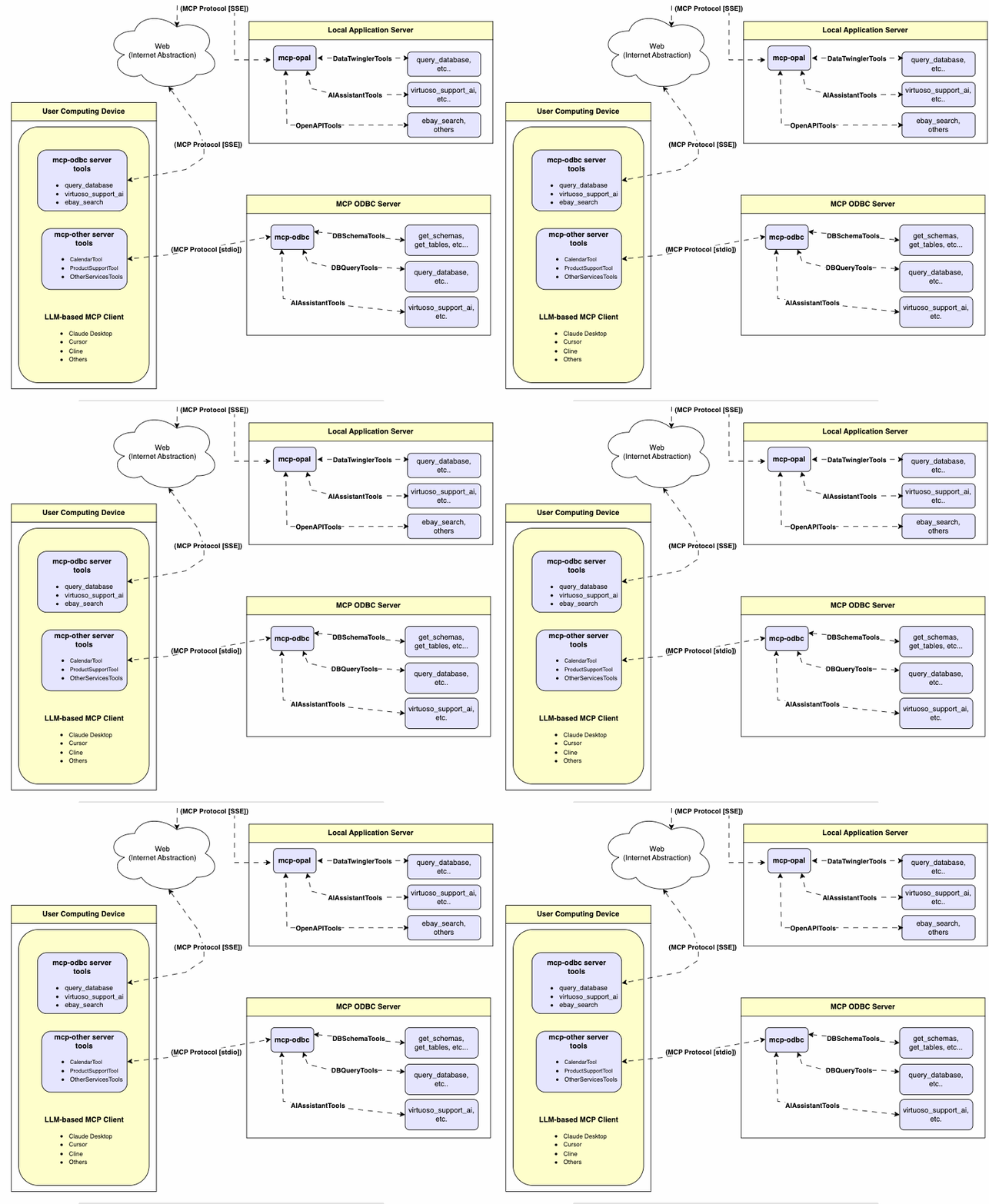67## Server Implementation89This **MCP Server for ODBC** is a small TypeScript layer built on top of `node-odbc`. It routes calls to the host system's local ODBC Driver Manager via `node.js` (specifically using `npx` for TypeScript).1011## Operating Environment Set Up & Prerequisites1213While the examples that follow are oriented toward the Virtuoso ODBC Connector, this guide will also work with other ODBC Connectors. We *strongly* encourage code contributions and submissions of usage demos related to other database management systems (DBMS) for incorporation into this project.1415### Key System Components16171. Check the `node.js` version. If it's not `21.1.0` or higher, upgrade or install explicitly using:18 ```sh19 nvm install v21.1.020 ```212. Install MCP components using:22 ```sh23 npm install @modelcontextprotocol/sdk zod tsx odbc dotenv24 ```253. Set the `nvm` version using:26 ```sh27 nvm alias default 21.1.028 ```2930### Installation31321. Run33 ```sh34 git clone https://github.com/OpenLinkSoftware/mcp-odbc-server.git35 ```362. Change directory37 ```sh38 cd mcp-odbc-server39 ```403. Run41 ```sh42 npm init -y43 ```444. Run45 ```sh46 npm install @modelcontextprotocol/sdk zod tsx odbc dotenv47 ```4849### unixODBC Runtime Environment Checks50511. Check installation configuration (i.e., location of key INI files) by running:52 ```sh53 odbcinst -j54 ```552. List available data source names (DSNs) by running:56 ```sh57 odbcinst -q -s58 ```5960### Environment Variables61As good security practice, you should use the `.env` file situated in the same directory as the `mcp-ser` to set bindings for the ODBC Data Source Name (`ODBC_DSN`), the User (`ODBC_USER`), the Password (`ODBC_PWD`), the ODBC INI (`ODBCINI`), and, if you want to use the OpenLink AI Layer (OPAL) via ODBC, the target Large Language Model (LLM) API Key (`API_KEY`).6263```sh64API_KEY=sk-xxx65ODBC_DSN=Local Virtuoso66ODBC_USER=dba67ODBC_PASSWORD=dba68ODBCINI=/Library/ODBC/odbc.ini69```7071# Usage7273## Tools74After successful installation, the following tools will be available to MCP client applications.7576### Overview7778|name |description|79|:--- |:---|80|`get_schemas` |List database schemas accessible to connected database management system (DBMS).|81|`get_tables` |List tables associated with a selected database schema.|82|`describe_table` |Provide the description of a table associated with a designated database schema. This includes information about column names, data types, null handling, autoincrement, primary key, and foreign keys|83|`filter_table_names` |List tables associated with a selected database schema, based on a substring pattern from the `q` input field.|84|`query_database` |Execute a SQL query and return results in JSON Lines (JSONL) format.|85|`execute_query` |Execute a SQL query and return results in JSON Lines (JSONL) format.|86|`execute_query_md` |Execute a SQL query and return results in Markdown table format.|87|`spasql_query` |Execute a SPASQL query and return results.|88|`sparql_query` |Execute a SPARQL query and return results.|89|`virtuoso_support_ai`|Interact with the Virtuoso Support Assistant/Agent — a Virtuoso-specific feature for interacting with LLMs|9091### Detailed Description9293- **`get_schemas`**94 - Retrieve and return a list of all schema names from the connected database.95 - Input parameters:96 - `user` (string, optional): Database username. Defaults to `"demo"`.97 - `password` (string, optional): Database password. Defaults to `"demo"`.98 - `dsn` (string, optional): ODBC data source name. Defaults to `"Local Virtuoso"`.99 - Returns a JSON string array of schema names.100101- **`get_tables`**102 - Retrieve and return a list containing information about tables in a specified schema. If no schema is provided, uses the connection's default schema.103 - Input parameters:104 - `schema` (string, optional): Database schema to filter tables. Defaults to connection default.105 - `user` (string, optional): Database username. Defaults to `"demo"`.106 - `password` (string, optional): Database password. Defaults to `"demo"`.107 - `dsn` (string, optional): ODBC data source name. Defaults to `"Local Virtuoso"`.108 - Returns a JSON string containing table information (e.g., `TABLE_CAT`, `TABLE_SCHEM`, `TABLE_NAME`, `TABLE_TYPE`).109110- **`filter_table_names`**111 - Filters and returns information about tables whose names contain a specific substring.112 - Input parameters:113 - `q` (string, required): The substring to search for within table names.114 - `schema` (string, optional): Database schema to filter tables. Defaults to connection default.115 - `user` (string, optional): Database username. Defaults to `"demo"`.116 - `password` (string, optional): Database password. Defaults to `"demo"`.117 - `dsn` (string, optional): ODBC data source name. Defaults to `"Local Virtuoso"`.118 - Returns a JSON string containing information for matching tables.119120- **`describe_table`**121 - Retrieve and return detailed information about the columns of a specific table.122 - Input parameters:123 - `schema` (string, required): The database schema name containing the table.124 - `table` (string, required): The name of the table to describe.125 - `user` (string, optional): Database username. Defaults to `"demo"`.126 - `password` (string, optional): Database password. Defaults to `"demo"`.127 - `dsn` (string, optional): ODBC data source name. Defaults to `"Local Virtuoso"`.128 - Returns a JSON string describing the table's columns (e.g., `COLUMN_NAME`, `TYPE_NAME`, `COLUMN_SIZE`, `IS_NULLABLE`).129130- **`query_database`**131 - Execute a standard SQL query and return the results in JSON format.132 - Input parameters:133 - `query` (string, required): The SQL query string to execute.134 - `user` (string, optional): Database username. Defaults to `"demo"`.135 - `password` (string, optional): Database password. Defaults to `"demo"`.136 - `dsn` (string, optional): ODBC data source name. Defaults to `"Local Virtuoso"`.137 - Returns query results as a JSON string.138139- **`query_database_md`**140 - Execute a standard SQL query and return the results formatted as a Markdown table.141 - Input parameters:142 - `query` (string, required): The SQL query string to execute.143 - `user` (string, optional): Database username. Defaults to `"demo"`.144 - `password` (string, optional): Database password. Defaults to `"demo"`.145 - `dsn` (string, optional): ODBC data source name. Defaults to `"Local Virtuoso"`.146 - Returns query results as a Markdown table string.147148- **`query_database_jsonl`**149 - Execute a standard SQL query and return the results in JSON Lines (JSONL) format (one JSON object per line).150 - Input parameters:151 - `query` (string, required): The SQL query string to execute.152 - `user` (string, optional): Database username. Defaults to `"demo"`.153 - `password` (string, optional): Database password. Defaults to `"demo"`.154 - `dsn` (string, optional): ODBC data source name. Defaults to `"Local Virtuoso"`.155 - Returns query results as a JSONL string.156157- **`spasql_query`**158 - Execute a SPASQL (SQL/SPARQL hybrid) query return results. This is a Virtuoso-specific feature.159 - Input parameters:160 - `query` (string, required): The SPASQL query string.161 - `max_rows` (number, optional): Maximum number of rows to return. Defaults to `20`.162 - `timeout` (number, optional): Query timeout in milliseconds. Defaults to `30000`, i.e., 30 seconds.163 - `user` (string, optional): Database username. Defaults to `"demo"`.164 - `password` (string, optional): Database password. Defaults to `"demo"`.165 - `dsn` (string, optional): ODBC data source name. Defaults to `"Local Virtuoso"`.166 - Returns the result from the underlying stored procedure call (e.g., `Demo.demo.execute_spasql_query`).167168- **`sparql_query`**169 - Execute a SPARQL query and return results. This is a Virtuoso-specific feature.170 - Input parameters:171 - `query` (string, required): The SPARQL query string.172 - `format` (string, optional): Desired result format. Defaults to `'json'`.173 - `timeout` (number, optional): Query timeout in milliseconds. Defaults to `30000`, i.e., 30 seconds.174 - `user` (string, optional): Database username. Defaults to `"demo"`.175 - `password` (string, optional): Database password. Defaults to `"demo"`.176 - `dsn` (string, optional): ODBC data source name. Defaults to `"Local Virtuoso"`.177 - Returns the result from the underlying function call (e.g., `"UB".dba."sparqlQuery"`).178179- **`virtuoso_support_ai`**180 - Utilizes a Virtuoso-specific AI Assistant function, passing a prompt and optional API key. This is a Virtuoso-specific feature.181 - Input parameters:182 - `prompt` (string, required): The prompt text for the AI function.183 - `api_key` (string, optional): API key for the AI service. Defaults to `"none"`.184 - `user` (string, optional): Database username. Defaults to `"demo"`.185 - `password` (string, optional): Database password. Defaults to `"demo"`.186 - `dsn` (string, optional): ODBC data source name. Defaults to `"Local Virtuoso"`.187 - Returns the result from the AI Support Assistant function call (e.g., `DEMO.DBA.OAI_VIRTUOSO_SUPPORT_AI`).188189## Basic Installation Testing & Troubleshooting190191### MCP Inspector Tool192193#### Canonical MCP Inspector Tool Edition1941951. Start the inspector from the mcp-server directory/folder using the following command:196 ```sh197 ODBCINI=/Library/ODBC/odbc.ini npx -y @modelcontextprotocol/inspector npx tsx ./src/main.ts198 ```1992. Click on the "Connect" button, then click on the "Tools" tab to get started.200201 [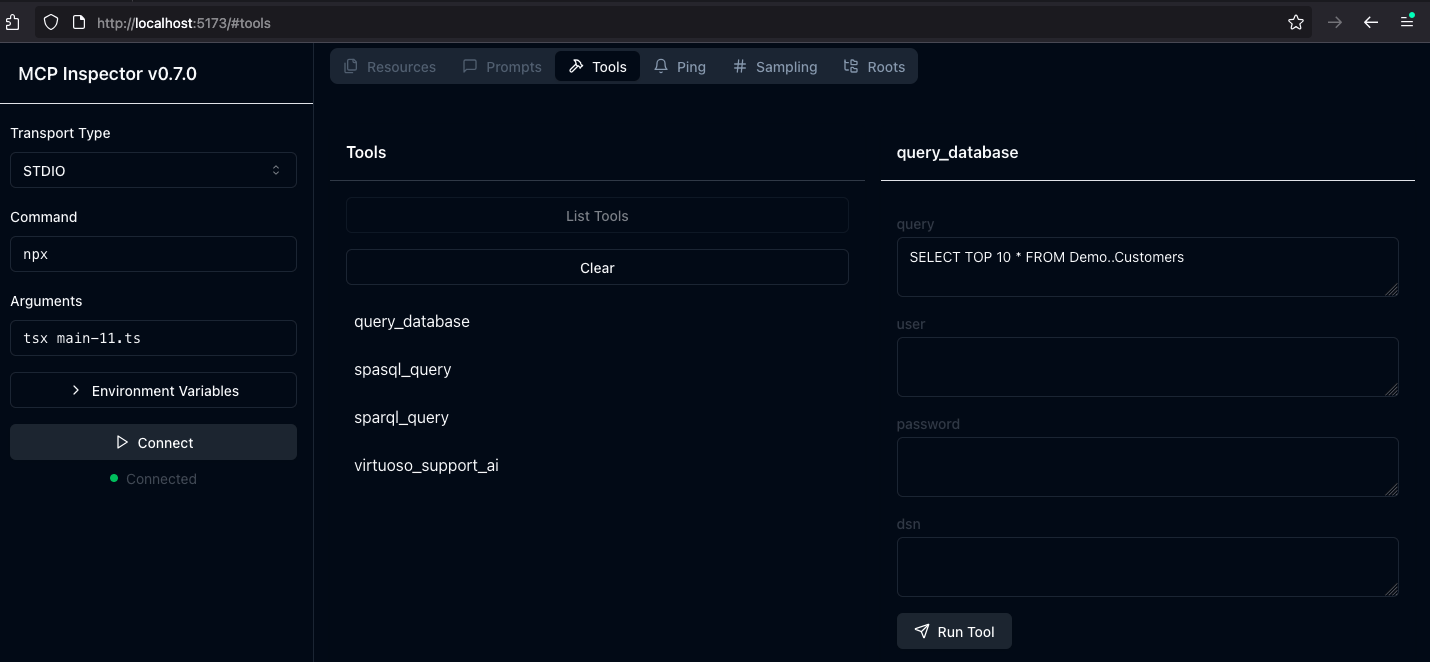](https://www.openlinksw.com/data/screenshots/mcp-server-inspector-demo-1.png)202203#### OpenLink MCP Inspector Tool Edition204205This is a fork of the canonical edition that includes a JSON handling bug fix related to use with this MCP Server.2062071. run208 ```sh209 git clone git@github.com:OpenLinkSoftware/inspector.git210 cd inspector211 ```2122. run213 ```sh214 npm run start215 ```2163. Provide the following value in the `Arguments` input field of MCP Inspectors UI from http://localhost:6274217 ```sh218 tsx /path/to/mcp-odbc-server/src/main.ts219 ```2204. Click on the `Connect` button to initialize your session with the designated MCP Server221222223### Apple Silicon (ARM64) Compatibility with MCP ODBC Server Issues224225#### Node x86_64 vs arm64 Conflict Issue226227The x86_64 rather than arm64 edition of `node` may be in place, but the ODBC bridge and MCP server are arm64-based components.228229You can solve this problem by performing the following steps:2302311. Uninstall the x86_64 edition of `node` by running:232 ```sh233 nvm uninstall 21.1.0234 ```2352. Run the following command to confirm your current shell is in arm64 mode:236 ```sh237 arch238 ```239 - if that returns x86_64, then run the following command to change the active mode:240 ```241 arch arm64242 ```2433. Install the arm64 edition of `node` by running:244 ```sh245 nvm install 21.1.0246 ```247248#### Node to ODBC Bridge Layer Incompatibility249250When attempting to use a Model Context Protocol (MCP) ODBC Server on Apple Silicon machines, you may encounter architecture mismatch errors. These occur because the `Node.js` ODBC native module (`odbc.node`) is compiled for ARM64 architecture, but the x86_64-based edition of the unixODBC runtime is being loaded.251252Typical error message:253254```255Error: dlopen(...odbc.node, 0x0001): tried: '...odbc.node' (mach-o file, but is an incompatible architecture (have 'x86_64', need 'arm64e' or 'arm64'))256```257258You solve this problem by performing the following steps:2592601. Verify your `Node.js` is running in ARM64 mode:261262 ```bash263 node -p "process.arch" # Should output: `arm64`264 ```2652662. Install unixODBC for ARM64:267268 ```bash269 # Verify Homebrew is running in ARM64 mode270 which brew # Should point to /opt/homebrew/bin/brew271272 # Remove existing unixODBC273 brew uninstall --force unixodbc274275 # Install ARM64 version276 arch -arm64 brew install unixodbc277 ```2782793. Rebuild the Node.js ODBC module for ARM64:280281 ```bash282 # Navigate to your project283 cd /path/to/mcp-odbc-server284285 # Remove existing module286 rm -rf node_modules/odbc287288 # Set architecture environment variable289 export npm_config_arch=arm64290291 # Reinstall with force build292 npm install odbc --build-from-source293 ```2942954. Verify the module is now ARM64:296297 ```bash298 file node_modules/odbc/lib/bindings/napi-v8/odbc.node299 # Should show "arm64" instead of "x86_64"300 ```301302#### Key Points303304- Both unixODBC and the `Node.js` ODBC module must be ARM64-compatible305- Using environment variables (`export npm_config_arch=arm64`) is more reliable than `npm config` commands306- Always verify architecture with the `file` command or `node -p "process.arch"`307- When using Homebrew on Apple Silicon, commands can be prefixed with `arch -arm64` to force use of ARM64 binaries308309## MCP Application Usage310311### Claude Desktop Configuration312313The path for this config file is: `~{username}/Library/Application Support/Claude/claude_desktop_config.json`.314315```json316{317 "mcpServers": {318 "ODBC": {319 "command": "/path/to/.nvm/versions/node/v21.1.0/bin/node",320 "args": [321 "/path/to/mcp-odbc-server/node_modules/.bin/tsx",322 "/path/to/mcp-odbc-server/src/main.ts"323 ],324 "env": {325 "ODBCINI": "/Library/ODBC/odbc.ini",326 "NODE_VERSION": "v21.1.0",327 "PATH": "~/.nvm/versions/node/v21.1.0/bin:${PATH}"328 },329 "disabled": false,330 "autoApprove": []331 }332 }333}334```335336### Claude Desktop Usage3373381. Start the application.3392. Apply configuration (from above) via Settings | Developer user interface.3403. Ensure you have a working ODBC connection to a Data Source Name (DSN).3414. Present a prompt requesting query execution, e.g.,342 ```343 Execute the following query: SELECT TOP * from Demo..Customers344 ```345346 [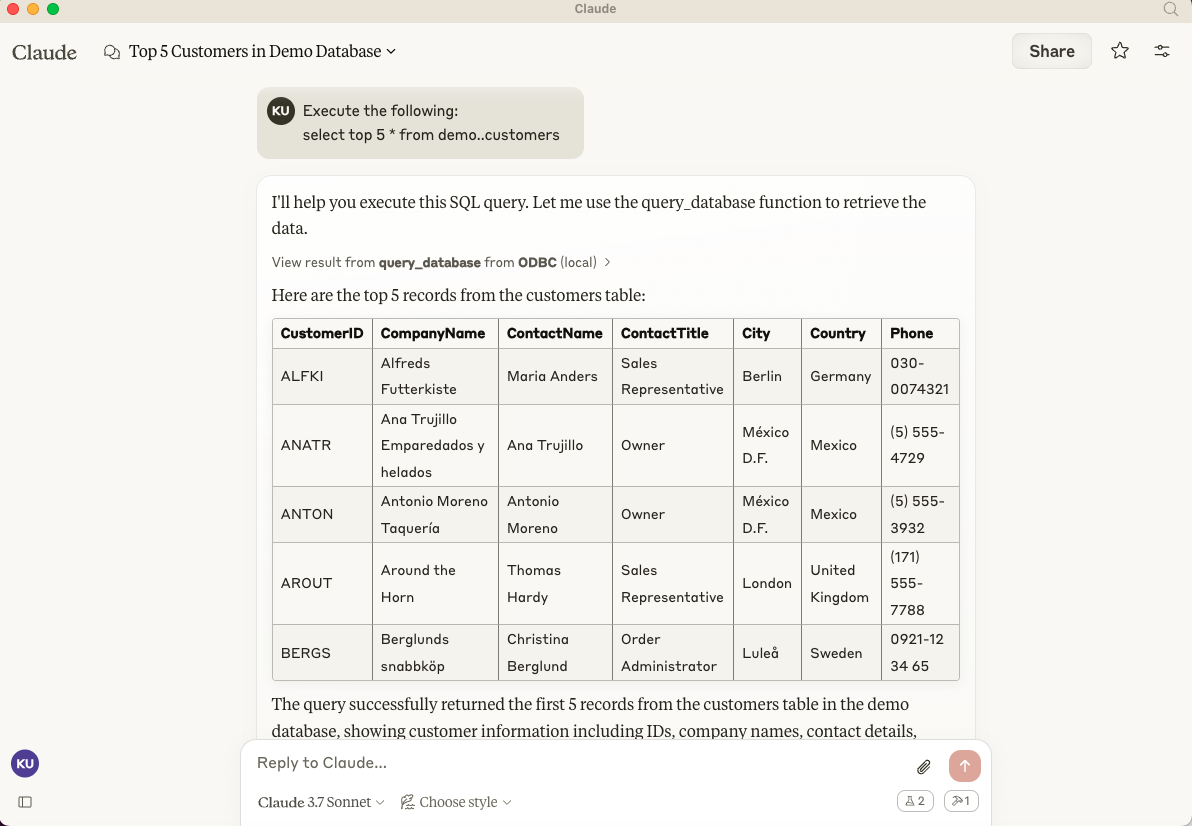](https://www.openlinksw.com/data/screenshots/claude-desktp-mcp-odbc-server-demo-1.png)347348### Cline (Visual Studio Extension) Configuration349350The path for this config file is: `~{username}/Library/Application\ Support/Code/User/globalStorage/saoudrizwan.claude-dev/settings/cline_mcp_settings.json`351352```json353{354 "mcpServers": {355 "ODBC": {356 "command": "/path/to/.nvm/versions/node/v21.1.0/bin/node",357 "args": [358 "/path/to/mcp-odbc-server/node_modules/.bin/tsx",359 "/path/to/mcp-odbc-server/src/main.ts"360 ],361 "env": {362 "ODBCINI": "/Library/ODBC/odbc.ini",363 "NODE_VERSION": "v21.1.0",364 "PATH": "/path/to/.nvm/versions/node/v21.1.0/bin:${PATH}"365 },366 "disabled": false,367 "autoApprove": []368 }369 }370}371```372373### Cline (Visual Studio Extension) Usage3743751. Use Shift+Command+`P` to open the Command Palette.3762. Type in: `Cline`.3773. Select: `Cline View`, which opens the Cline UI in the VSCode sidebar.3784. Use the four-squares icon to access the UI for installing and configuring MCP servers.3796. Apply the Cline Config (from above).3807. Return to the extension's main UI and start a new task requesting processing of the following prompt:381 ```382 "Execute the following query: SELECT TOP 5 * from Demo..Customers"383 ```384385 [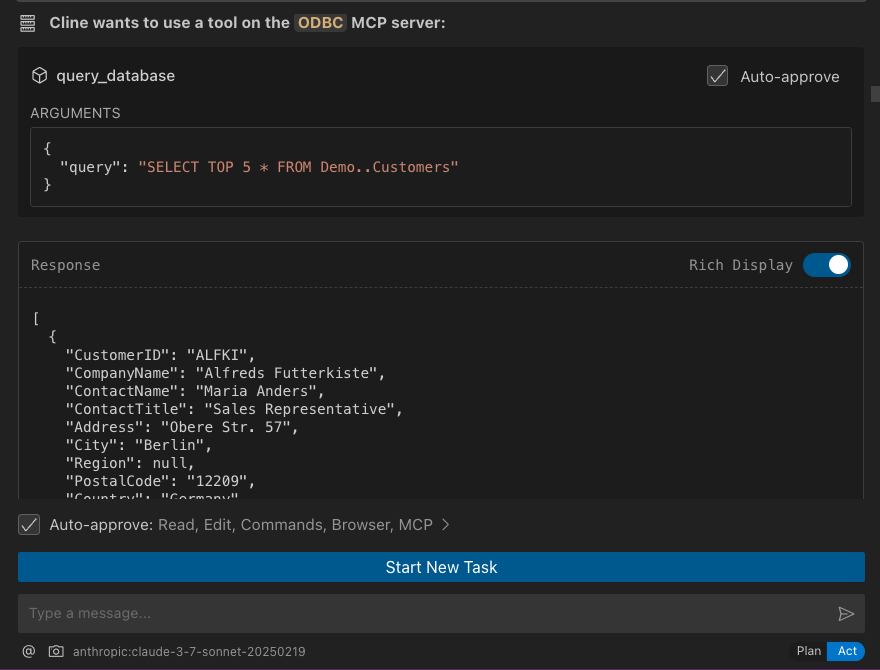](https://www.openlinksw.com/data/screenshots/cline-extension-mcp-server-odbc-demo-1.png)386387### Cursor Configuration388389Use the settings gear to open the configuration menu that includes the MCP menu item for registering and configuring `mcp servers`.390391### Cursor Usage3923931. Use the Command+`I` or Control+`I` key combination to open the Chat Interface.3942. Select `Agent` from the drop-down at the bottom left of the UI, where the default is `Ask`.3953. Enter your prompt, qualifying the use of the `mcp-server for odbc` using the pattern: `@odbc {rest-of-prompt}`.3964. Click on "Accept" to execute the prompt.397398 [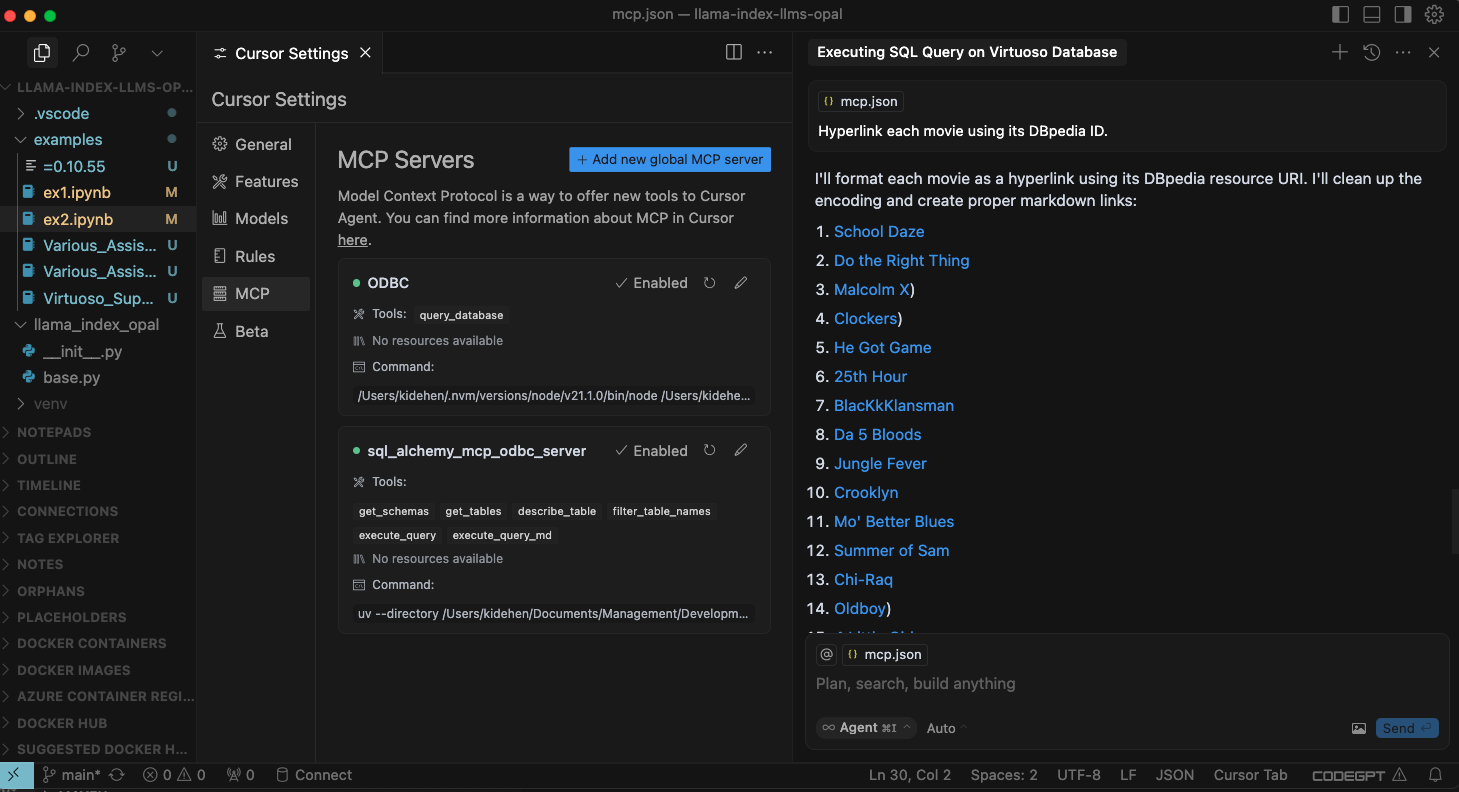](https://www.openlinksw.com/data/screenshots/cursor-editor-mcp-config-for-odbc-server-1.png)399400# Related401402* [MCP Inspector Usage Screencast](https://www.openlinksw.com/data/screencasts/mcp-inspector-odbc-sparql-spasql-demo-1.mp4)403* [Basic Claude Desktop Usage Screencast](https://www.openlinksw.com/data/screencasts/claude-odbc-mcp-sql-spasql-demo-1.mp4)404* [Basic Cline Visual Studio Code Extension Usage Screencast](https://www.openlinksw.com/data/screencasts/cline-vscode-mcp-odbc-sql-spasql-1.mp4)405* [Basic Cursor Editor Usage Screencast](https://www.openlinksw.com/data/screencasts/cursor-odbc-mcp-sql-spasql-demo-1.mp4)406
Full transparency — inspect the skill content before installing.