
An MCP server developed for AI to connect and manage Jupyter Notebooks in real-time Developed by Datalayer - Key Features - MCP Overview - Getting Started - Best Practices - Contributing - Resources - ⚡ Real-time control: Instantly view notebook changes as they happen. - 🔁 Smart execution: Automatically adjusts when a cell run fails thanks to cell output feedback. - 🧠 Context-aware: Understands
npx mdskills install datalayer/jupyter-mcp-serverRelated
@datalayer? Sign in with GitHub to claim this listing.Comprehensive MCP server enabling real-time Jupyter notebook control with excellent tool coverage and multimodal support
1<!--2 ~ Copyright (c) 2024- Datalayer, Inc.3 ~4 ~ BSD 3-Clause License5-->67[](https://datalayer.io)89[](https://github.com/sponsors/datalayer)1011<div align="center">1213<!-- omit in toc -->1415# 🪐🔧 Jupyter MCP Server1617**An [MCP](https://modelcontextprotocol.io) server developed for AI to connect and manage Jupyter Notebooks in real-time**1819*Developed by [Datalayer](https://github.com/datalayer)*2021[](https://pypi.org/project/jupyter-mcp-server)22[](https://pepy.tech/project/jupyter-mcp-server)23[](https://hub.docker.com/r/datalayer/jupyter-mcp-server)24[](https://opensource.org/licenses/BSD-3-Clause)252627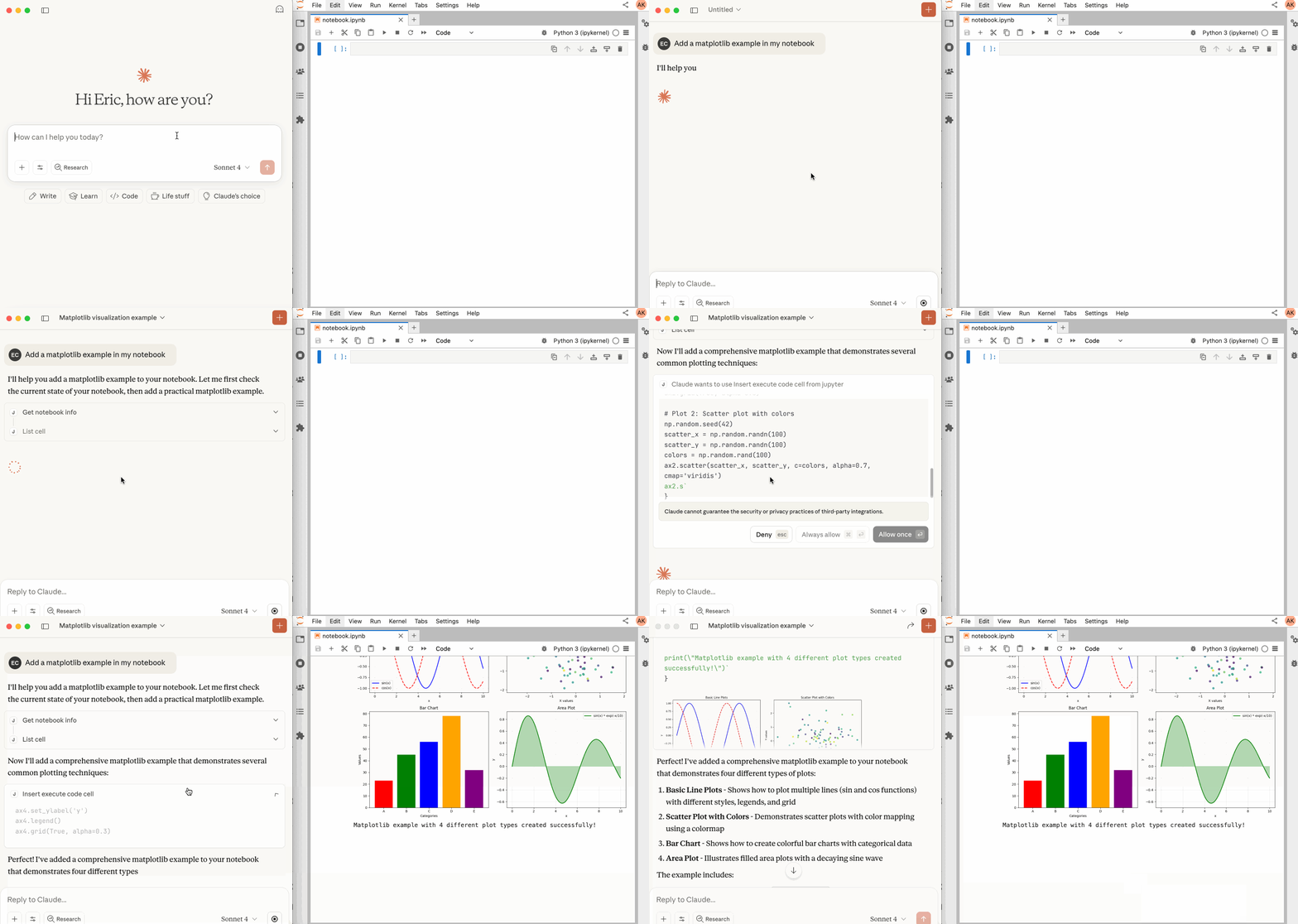2829</div>3031> [!NOTE]32> **We Need Your Feedback!**33>34> We're actively developing support for **JupyterHub** and **Google Colab** deployments. If you're using or planning to use Jupyter MCP Server with these platforms, we'd love to hear from you!35>36> - 🏢 **JupyterHub users**: Share your deployment setup and requirements37> - 🌐 **Google Colab users**: Help us understand your use cases and workflows38>39> Join the conversation in our [Community page](https://jupyter-mcp-server.datalayer.tech/community) - your feedback will help us prioritize features and ensure these integrations work seamlessly for your needs.4041## 📖 Table of Contents4243- [Key Features](#-key-features)44- [MCP Overview](#-mcp-overview)45- [Getting Started](#-getting-started)46- [Best Practices](#-best-practices)47- [Contributing](#-contributing)48- [Resources](#-resources)4950## 🚀 Key Features5152- ⚡ **Real-time control:** Instantly view notebook changes as they happen.53- 🔁 **Smart execution:** Automatically adjusts when a cell run fails thanks to cell output feedback.54- 🧠 **Context-aware:** Understands the entire notebook context for more relevant interactions.55- 📊 **Multimodal support:** Support different output types, including images, plots, and text.56- 📚 **Multi-notebook support:** Seamlessly switch between multiple notebooks.57- 🎨 **JupyterLab integration:** Enhanced UI integration like automatic notebook opening.58- 🤝 **MCP-compatible:** Works with any MCP client, such as Claude Desktop, Cursor, Windsurf, and more.5960Compatible with any Jupyter deployment (local, JupyterHub, ...) and with [Datalayer](https://datalayer.ai) hosted Notebooks.616263## 🔧 MCP Overview6465### 🔧 Tools Overview6667The server provides a rich set of tools for interacting with Jupyter notebooks, categorized as follows.68For more details on each tool, their parameters, and return values, please refer to the [official Tools documentation](https://jupyter-mcp-server.datalayer.tech/tools).697071#### Server Management Tools7273| Name | Description |74| :--------------- | :----------------------------------------------------------------------------------------- |75| `list_files` | List files and directories in the Jupyter server's file system. |76| `list_kernels` | List all available and running kernel sessions on the Jupyter server. |77| `connect_to_jupyter` | Connect to a Jupyter server dynamically without restarting the MCP server. *Not available when running as Jupyter extension. Useful for switching servers dynamically or avoiding hardcoded configuration.* [Read more](https://jupyter-mcp-server.datalayer.tech/reference/tools/#3-connect_to_jupyter) |7879#### Multi-Notebook Management Tools8081| Name | Description |82| :----------------- | :--------------------------------------------------------------------------------------- |83| `use_notebook` | Connect to a notebook file, create a new one, or switch between notebooks. |84| `list_notebooks` | List all notebooks available on the Jupyter server and their status |85| `restart_notebook` | Restart the kernel for a specific managed notebook. |86| `unuse_notebook` | Disconnect from a specific notebook and release its resources. |87| `read_notebook` | Read notebook cells source content with brief or detailed format options. |8889#### Cell Operations and Execution Tools9091| Name | Description |92| :------------------------- | :------------------------------------------------------------------------------- |93| `read_cell` | Read the full content (Metadata, Source and Outputs) of a single cell. |94| `insert_cell` | Insert a new code or markdown cell at a specified position. |95| `delete_cell` | Delete a cell at a specified index. |96| `overwrite_cell_source` | Overwrite the source code of an existing cell. |97| `execute_cell` | Execute a cell with timeout, supports multimodal output including images. |98| `insert_execute_code_cell` | Insert a new code cell and execute it in one step. |99| `execute_code` | Execute code directly in the kernel, supports magic commands and shell commands. |100101#### JupyterLab Integration102103*Available only when JupyterLab mode is enabled. It is enabled by default.*104105When running in JupyterLab mode, Jupyter MCP Server integrates with [jupyter-mcp-tools](https://github.com/datalayer/jupyter-mcp-tools) to expose additional JupyterLab commands as MCP tools. By default, the following tools are enabled:106107| Name | Description |108| :---------------------------- | :--------------------------------------------------------------------------------- |109| `notebook_run-all-cells` | Execute all cells in the current notebook sequentially |110| `notebook_get-selected-cell` | Get information about the currently selected cell |111112<details>113<summary><strong>📚 Learn how to customize additional tools</strong></summary>114115You can now customize which tools from `jupyter-mcp-tools` are available using the `allowed_jupyter_mcp_tools` configuration parameter. This allows you to enable additional notebook operations, console commands, file management tools, and more.116117```bash118# Example: Enable additional tools via command-line119jupyter lab --port 4040 --IdentityProvider.token MY_TOKEN --JupyterMCPServerExtensionApp.allowed_jupyter_mcp_tools="notebook_run-all-cells,notebook_get-selected-cell,notebook_append-execute,console_create"120```121122For the complete list of available tools and detailed configuration instructions, please refer to the [Additional Tools documentation](https://jupyter-mcp-server.datalayer.tech/reference/tools-additional).123124</details>125126### 📝 Prompt Overview127128The server also supports [prompt feature](https://modelcontextprotocol.io/specification/2025-06-18/server/prompts) of MCP, providing a easy way for user to interact with Jupyter notebooks.129130| Name | Description |131| :------------- | :--------------------------------------------------------------------------------- |132| `jupyter-cite` | Cite specific cells from specified notebook (like `@` in Coding IDE or CLI) |133134For more details on each prompt, their input parameters, and return content, please refer to the [official Prompt documentation](https://jupyter-mcp-server.datalayer.tech/reference/prompts).135136## 🏁 Getting Started137138For comprehensive setup instructions—including `Streamable HTTP` transport, running as a Jupyter Server extension and advanced configuration—check out [our documentation](https://jupyter-mcp-server.datalayer.tech/). Or, get started quickly with `JupyterLab` and `STDIO` transport here below.139140### 1. Set Up Your Environment141142```bash143pip install jupyterlab==4.4.1 jupyter-collaboration==4.0.2 jupyter-mcp-tools>=0.1.4 ipykernel144pip uninstall -y pycrdt datalayer_pycrdt145pip install datalayer_pycrdt==0.12.17146```147148> [!TIP]149> To confirm your environment is correctly configured:150> 1. Open a notebook in JupyterLab151> 2. Type some content in any cell (code or markdown)152> 3. Observe the tab indicator: you should see an "×" appear next to the notebook name, indicating unsaved changes153> 4. Wait a few seconds—the "×" should automatically change to a "●" without manually saving154>155> This automatic saving behavior confirms that the real-time collaboration features are working properly, which is essential for MCP server integration.156157### 2. Start JupyterLab158159```bash160# Start JupyterLab on port 8888, allowing access from any IP and setting a token161jupyter lab --port 8888 --IdentityProvider.token MY_TOKEN --ip 0.0.0.0162```163164> [!NOTE]165> If you are running notebooks through JupyterHub instead of JupyterLab as above, refer to our [JupyterHub setup guide](https://jupyter-mcp-server.datalayer.tech//providers/jupyterhub-streamable-http/).166167### 3. Configure Your Preferred MCP Client168169Next, configure your MCP client to connect to the server. We offer two primary methods—choose the one that best fits your needs:170171- **📦 Using `uvx` (Recommended for Quick Start):** A lightweight and fast method using `uv`. Ideal for local development and first-time users.172- **🐳 Using `Docker` (Recommended for Production):** A containerized approach that ensures a consistent and isolated environment, perfect for production or complex setups.173174<details>175<summary><b>📦 Using uvx (Quick Start)</b></summary>176177First, install `uv`:178179```bash180pip install uv181uv --version182# should be 0.6.14 or higher183```184185See more details on [uv installation](https://docs.astral.sh/uv/getting-started/installation/).186187Then, configure your client:188189```json190{191 "mcpServers": {192 "jupyter": {193 "command": "uvx",194 "args": ["jupyter-mcp-server@latest"],195 "env": {196 "JUPYTER_URL": "http://localhost:8888",197 "JUPYTER_TOKEN": "MY_TOKEN",198 "ALLOW_IMG_OUTPUT": "true"199 }200 }201 }202}203```204205</details>206207<details>208<summary><b>🐳 Using Docker (Production)</b></summary>209210**On macOS and Windows:**211212```json213{214 "mcpServers": {215 "jupyter": {216 "command": "docker",217 "args": [218 "run", "-i", "--rm",219 "-e", "JUPYTER_URL",220 "-e", "JUPYTER_TOKEN",221 "-e", "ALLOW_IMG_OUTPUT",222 "datalayer/jupyter-mcp-server:latest"223 ],224 "env": {225 "JUPYTER_URL": "http://host.docker.internal:8888",226 "JUPYTER_TOKEN": "MY_TOKEN",227 "ALLOW_IMG_OUTPUT": "true"228 }229 }230 }231}232```233234**On Linux:**235236```json237{238 "mcpServers": {239 "jupyter": {240 "command": "docker",241 "args": [242 "run", "-i", "--rm",243 "-e", "JUPYTER_URL",244 "-e", "JUPYTER_TOKEN",245 "-e", "ALLOW_IMG_OUTPUT",246 "--network=host",247 "datalayer/jupyter-mcp-server:latest"248 ],249 "env": {250 "JUPYTER_URL": "http://localhost:8888",251 "JUPYTER_TOKEN": "MY_TOKEN",252 "ALLOW_IMG_OUTPUT": "true"253 }254 }255 }256}257```258259</details>260261> [!TIP]262>263> 1. **Port Configuration**: Ensure the `port` in your Jupyter URLs matches the one used in the `jupyter lab` command. For simplified config, set this in `JUPYTER_URL`.264> 1. **Server Separation**: Use `JUPYTER_URL` when both services are on the same server, or set individual variables for advanced deployments. The different URL variables exist because some deployments separate notebook storage (`DOCUMENT_URL`) from kernel execution (`RUNTIME_URL`).265> 1. **Authentication**: In most cases, document and runtime services use the same authentication token. Use `JUPYTER_TOKEN` for simplified config or set `DOCUMENT_TOKEN` and `RUNTIME_TOKEN` individually for different credentials.266> 1. **Notebook Path**: The `DOCUMENT_ID` parameter specifies the path to the notebook the MCP client default to connect. It should be relative to the directory where JupyterLab was started. If you omit `DOCUMENT_ID`, the MCP client can automatically list all available notebooks on the Jupyter server, allowing you to select one interactively via your prompts.267> 1. **Image Output**: Set `ALLOW_IMG_OUTPUT` to `false` if your LLM does not support mutimodel understanding.268269For detailed instructions on configuring various MCP clients—including [Claude Desktop](https://jupyter-mcp-server.datalayer.tech/clients/claude_desktop), [VS Code](https://jupyter-mcp-server.datalayer.tech/clients/vscode), [Cursor](https://jupyter-mcp-server.datalayer.tech/clients/cursor), [Cline](https://jupyter-mcp-server.datalayer.tech/clients/cline), and [Windsurf](https://jupyter-mcp-server.datalayer.tech/clients/windsurf) — see the [Clients documentation](https://jupyter-mcp-server.datalayer.tech/clients).270271## ✅ Best Practices272273- Interact with LLMs that supports multimodal input (like Gemini 2.5 Pro) to fully utilize advanced multimodal understanding capabilities.274- Use a MCP client that supports returning image data and can parse it (like Cursor, Gemini CLI, etc.), as some clients may not support this feature.275- Break down complex task (like the whole data science workflow) into multiple sub-tasks (like data cleaning, feature engineering, model training, model evaluation, etc.) and execute them step-by-step.276- Provide clearly structured prompts and rules (👉 Visit our [Prompt Templates](prompt/README.md) to get started)277- Provide as much context as possible (like already installed packages, field explanations for existing datasets, current working directory, detailed task requirements, etc.).278279## 🤝 Contributing280281We welcome contributions of all kinds! Here are some examples:282283- 🐛 Bug fixes284- 📝 Improvements to existing features285- 🔧 New feature development286- 📚 Documentation improvements and prompt templates287288For detailed instructions on how to get started with development and submit your contributions, please see our [**Contributing Guide**](CONTRIBUTING.md).289290### Our Contributors291292[](https://github.com/datalayer/jupyter-mcp-server/graphs/contributors)293294## 📚 Resources295296Looking for blog posts, videos, or other materials about Jupyter MCP Server?297298👉 Visit the [**Resources section**](https://jupyter-mcp-server.datalayer.tech/resources) in our documentation for more!299300[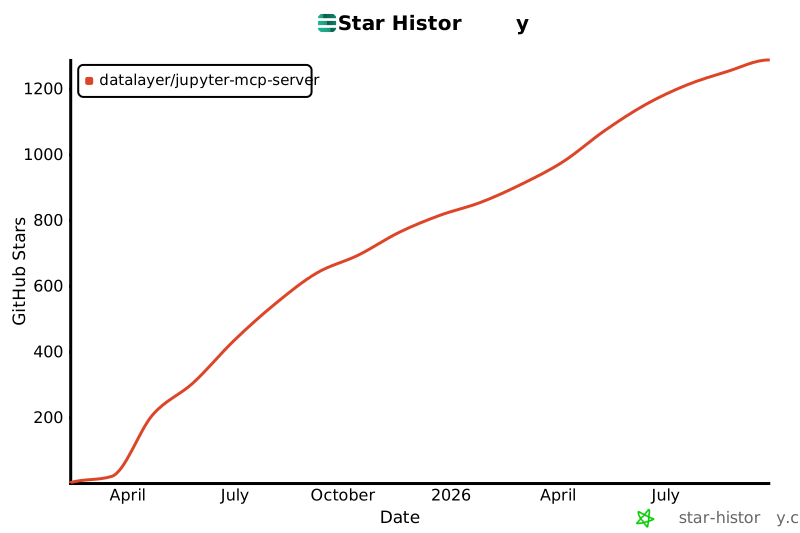](https://star-history.com/#datalayer/jupyter-mcp-server&type=Date)301302______________________________________________________________________303304<div align="center">305306**If this project is helpful to you, please give us a ⭐️**307308Made with ❤️ by [Datalayer](https://github.com/datalayer)309310</div>311
Full transparency — inspect the skill content before installing.